هذا المقال متوفر باللغة العربية — اقرأ بالعربية
“WordPress update broke my site” is one of the most stressful messages a business owner can type into Google, usually a few minutes after clicking “Update” and seeing a critical error, a blank page or a checkout that no longer works. The good news is that most broken updates can be reversed without losing your content, as long as you take the right steps in the right order. This guide walks you through those steps, explains what WordPress already does to protect you, and helps you decide when to fix it yourself and when to hand it to a developer.
It is written for business owners and marketing managers in Egypt, Saudi Arabia and the Gulf who run their company site or online store on WordPress. You do not need to write code to follow it, but some steps need access to your hosting control panel.
The first 15 minutes: what to do and what to avoid
When a site breaks right after an update, the instinct is to click everything that might help. That often makes the problem harder to trace. Start with these:
- Write down what you updated and when. The plugin name, theme or WordPress version, and the time. This single note saves a developer a lot of guessing.
- Check the site admin email inbox. WordPress may already have sent you details about the error and a special login link.
- Check whether the problem is everywhere or on one page. The homepage, a product page, the contact form, the checkout and the admin dashboard can each fail differently.
- Tell your team to pause campaigns that send traffic to broken pages, especially paid ads.
And avoid these until you know the cause:
- Running more updates “to see if the next version fixes it”.
- Deleting plugins from the dashboard. Deleting can remove a plugin’s settings, while deactivating keeps them.
- Restoring an old full backup on a store that has taken orders since that backup was made.
- Editing theme or plugin files directly on the live site.
What “broken” usually looks like after an update
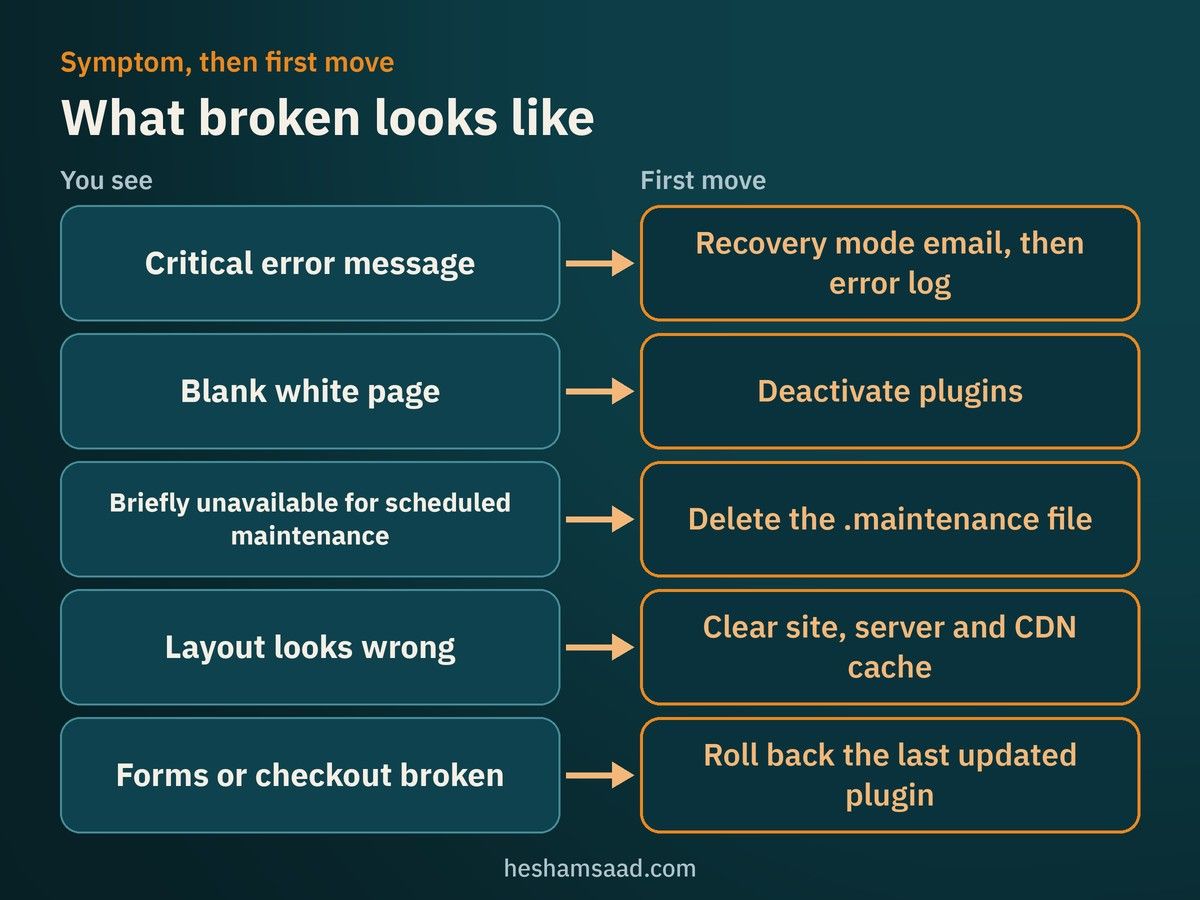
The symptom tells you where to look first. This table matches the most common signs to their usual causes, based on the WordPress common errors documentation:
| What you see | Usual cause | First move |
|---|---|---|
| “There has been a critical error on this website” | A PHP fatal error from a plugin, the theme, the PHP version or memory limits | Check the admin email for the recovery mode link, then the error log |
| A completely blank white page | A plugin or theme conflict, or a PHP error with display turned off | Deactivate plugins one by one, or all at once through the file manager |
| “Briefly unavailable for scheduled maintenance” | The update stopped before WordPress removed its temporary .maintenance file | Delete the .maintenance file from the site root |
| The site loads but the layout or styles look wrong | Cached old files, or a theme or page builder change | Clear the site, server and CDN cache, then test again |
| Forms, cart or checkout stop working | A conflict between the updated plugin and another plugin or the theme | Test the specific flow, then roll back the plugin you updated last |
If the whole site is unreachable, not just showing an error, the cause may be hosting, DNS or SSL rather than the update. Our guide on diagnosing a WordPress site that is down helps you tell the difference.
WordPress update broke my site: a step-by-step recovery path
Follow these steps in order. Stop as soon as the site is working again, then come back to the prevention section.
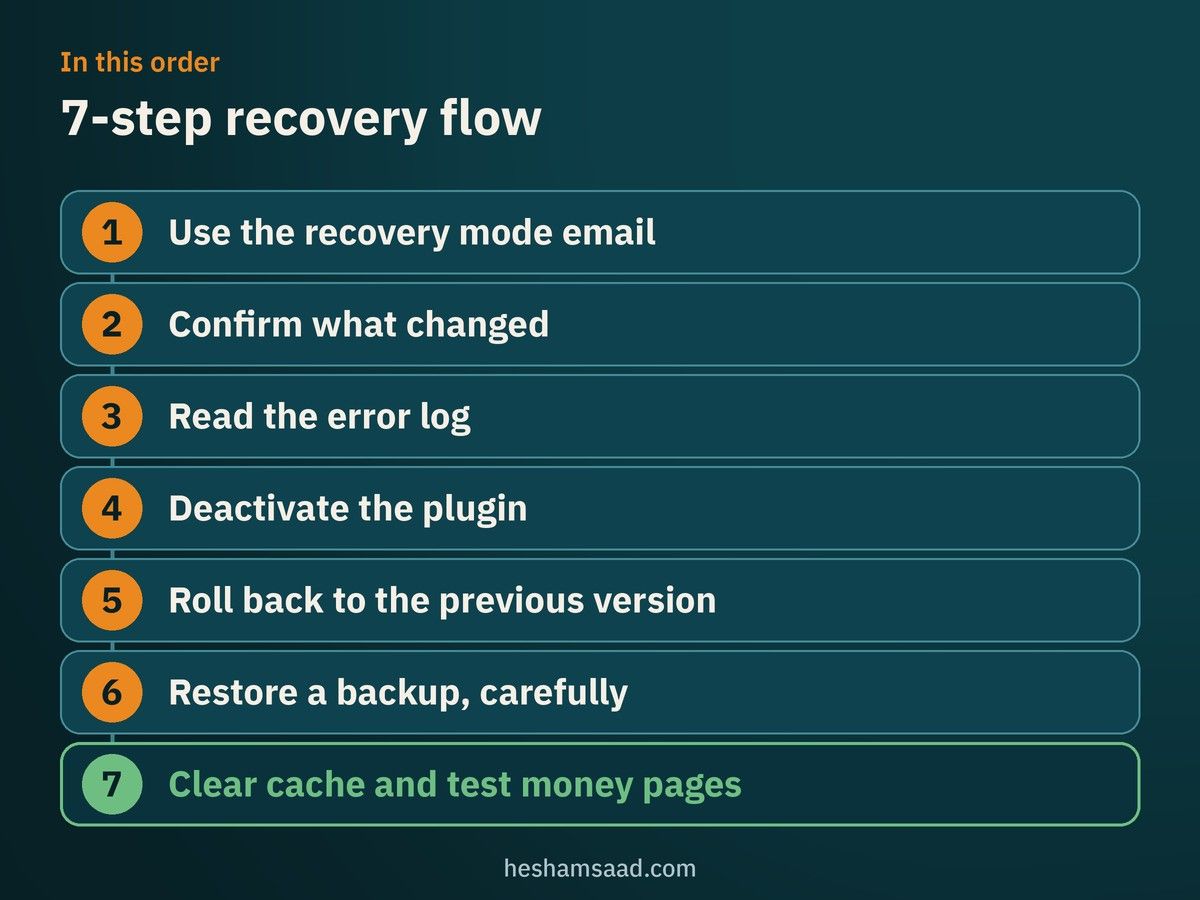
Step 1: Use the recovery mode email
Since WordPress 5.2, when a plugin or theme causes a fatal error, WordPress shows visitors an error screen and sends an email to the site admin address with a secret link to recovery mode. When you open that link and log in, the plugins or themes causing the error are paused for your session only, and the dashboard tells you which one failed and why.
From there you can deactivate the broken plugin so the site works for everyone. Keep in mind that recovery mode only pauses the plugin for you. Your visitors still see the error until you deactivate it or fix it.
If the email never arrives, the admin address may be outdated, or your site may not be sending email reliably. That is a separate problem worth fixing later, and it is common on business sites.
Step 2: Confirm exactly what changed
If the update happened automatically, check the inbox for WordPress update notifications. By default, WordPress emails the site owner after plugin and theme auto-updates, whether they succeeded, failed or were mixed. Plugin and theme auto-updates run twice a day by default, so a site can break overnight without anyone clicking anything.
Your hosting panel may also show recent file changes or an activity log. The goal is a short list: which plugin, theme or core version changed just before the problem started.
Step 3: Read the error log
If the error is not clear, turn on WordPress debug logging. The official debugging guide shows how to add WP_DEBUG and WP_DEBUG_LOG to wp-config.php so errors are written to a debug.log file inside wp-content, with WP_DEBUG_DISPLAY set to false so visitors do not see them.
The handbook also notes that debug tools are not recommended on live sites, so switch them off once you have the error message. The log usually names the plugin folder and file that failed, which points straight to the cause.
Step 4: Deactivate the plugin without the dashboard
If you cannot reach the dashboard, open your hosting file manager or connect over FTP and go to wp-content/plugins:
- Rename the folder of the plugin you just updated, for example add “-off” to the end of its name. WordPress will treat it as deactivated.
- If you are not sure which plugin is responsible, rename the whole plugins folder to deactivate all plugins at once, then rename it back and reactivate them one by one from the dashboard.
- If the theme is the problem, switch to a default WordPress theme such as Twenty Twenty-Five from the dashboard, using recovery mode if the dashboard does not load normally.
Renaming keeps each plugin’s settings in the database, which is why it is safer than deleting.
Step 5: Roll back to the previous version
Once you know which plugin or theme broke the site, you usually want the previous version back while the developer of that plugin releases a fix. Your options:
- Free plugins and themes from WordPress.org: the WP Rollback plugin lets you pick an earlier version from the Plugins or Themes screen. Its own documentation recommends testing on a staging copy and having a backup before you roll back on a live site.
- Premium plugins and themes: the free version of WP Rollback only covers WordPress.org items. For premium products, download the earlier version from your account with the vendor if they offer it, or use your backup of the plugin folder.
- A WordPress core update: core rollbacks are riskier because the database may have been upgraded too. This is a job for a developer working from a full backup.
Step 6: Restore a backup, carefully
A full restore is the last resort, not the first. Restoring the database brings back the state of the site at backup time, which means any orders, form entries, new users or posts created since then can be lost. On a WooCommerce store, that is a real cost.
When possible, restore only the files of the broken plugin or theme, not the whole site. If you need to restore everything, export recent orders and entries first. Our guide to backing up and restoring a WordPress site explains the difference between file and database backups.
Step 7: Clear every cache and test the money pages
After the fix, clear the caching plugin, the server cache and any CDN such as Cloudflare. Then test the pages that make you money: the contact form, booking form, cart, checkout and payment confirmation. Test on mobile as well as desktop, and in both languages if your site is bilingual.
What WordPress already does to protect you
WordPress core has added several safety nets over the years. Knowing them helps you understand why some updates fix themselves and others do not:
- Recovery mode (WordPress 5.2): pauses the extension that caused a fatal error for the admin who opens the recovery link, so you can still log in.
- Rollback for failed manual updates (WordPress 6.3): before a plugin or theme is updated, the old version is moved to a temporary backup folder. If the update process itself fails, WordPress puts the old version back.
- Rollback for plugin auto-updates (WordPress 6.6): after an automatic plugin update, WordPress checks the homepage for a PHP fatal error. If it finds one, it restores the previous version and emails the site administrator.
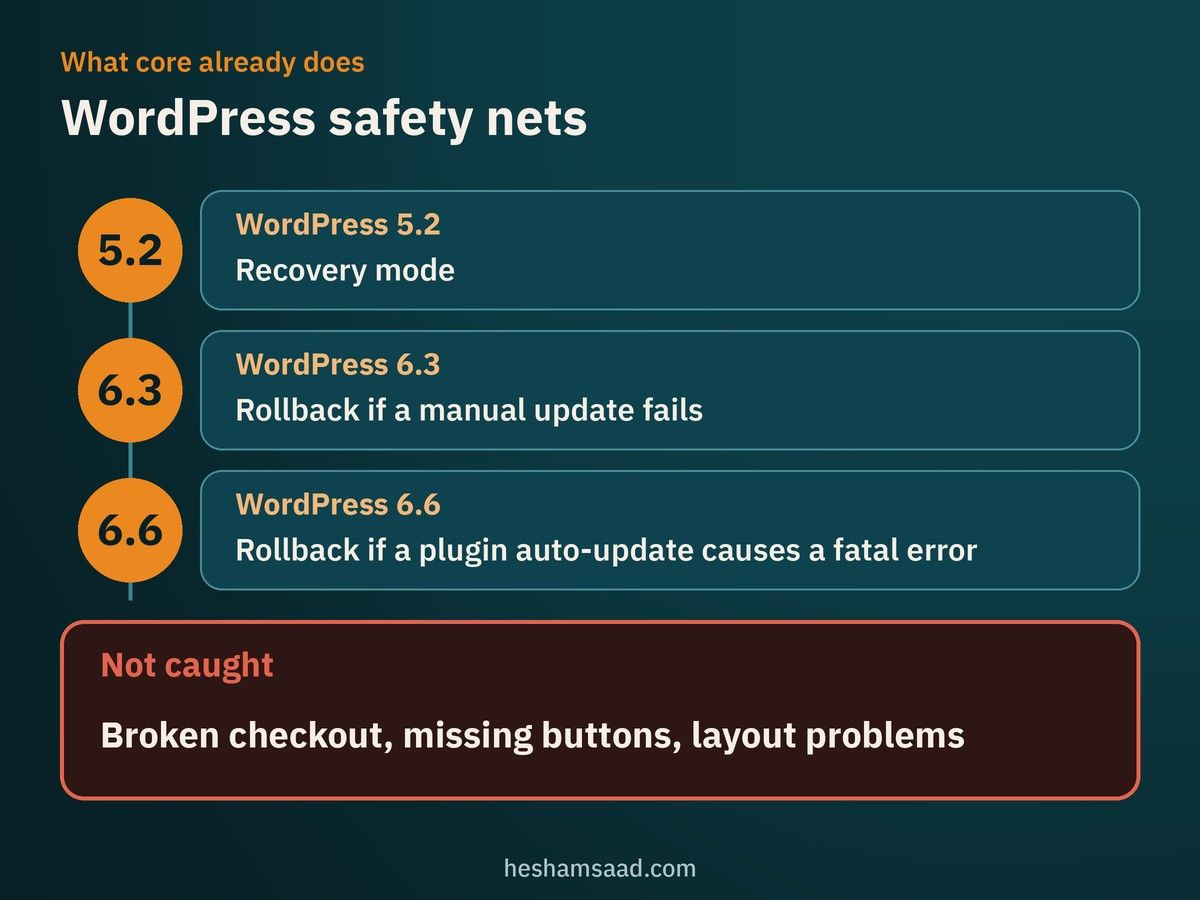
These features have clear limits. The 6.3 rollback only applies when the installation fails, not when an update installs correctly and then breaks something. The temporary backup is emptied as soon as the update finishes. And none of these checks will notice a broken checkout, a missing button or a layout problem, because those do not produce a PHP fatal error.
Why updates break business sites
Updates themselves are not the enemy. Security fixes arrive through them, and skipping them carries its own risk. Sites tend to break for a handful of reasons:
- Plugin conflicts: two plugins that worked together before stop doing so after one of them changes.
- PHP version mismatch: a new plugin version may require a newer PHP version than your hosting runs, or older code may fail on a newer PHP. Our guide on updating PHP in WordPress safely covers this.
- Edits made directly in theme or plugin files: an update replaces those files, and custom changes made inside them are lost. Custom code belongs in a child theme or a small custom plugin.
- Many updates at once: when ten plugins update together and something breaks, finding the cause takes longer.
- Plugins that are no longer maintained: they may not keep up with changes in WordPress or PHP.
Fix it yourself or hire a developer?
You can usually handle it yourself when:
- The recovery mode email clearly names one plugin and the site works after you deactivate it.
- The only problem is the “Briefly unavailable for scheduled maintenance” message.
- A free plugin from WordPress.org broke and rolling it back fixes the issue.
It is time to bring in a developer when:
- The broken part is the checkout, payments or bookings, and every hour costs you sales.
- You cannot reach the dashboard and do not have hosting or FTP access.
- A WordPress core update or a WooCommerce update changed the database.
- The site has custom code from a previous developer and nobody knows what it does. Our guide on taking over a WordPress site from another developer covers that situation.
- You fixed it once, and it breaks again on the next update.
Questions to ask a developer or maintenance provider
Whether you hire someone for a one-time fix or a monthly plan, these questions separate careful work from guesswork:
| Question | What a good answer sounds like |
|---|---|
| Do you test updates before applying them to the live site? | Yes, on a staging copy, with checks on forms and checkout |
| How often do you back up, and where are backups stored? | A clear schedule, stored off the server, with restores tested |
| What happens if an update breaks something? | A described rollback process and who is responsible for it |
| Will I know what was updated? | A written report listing what changed and what was checked |
| Who gets access to my hosting and admin? | Named accounts, not shared passwords, removed when the work ends |
| How do you handle premium plugin licences? | Licences registered to your business, not to the developer |
If a provider says they “update everything automatically” and cannot explain how they catch a broken checkout, keep asking. Our article on what a WordPress care plan should include goes deeper into comparing plans.
How to stop the next update from breaking the site
Use this as a checklist for your team or your provider:
- Take a fresh backup before every update session, and confirm you can restore it.
- Test updates on a staging site first. Our guide to setting up a WordPress staging site shows how.
- Update in small batches, so a problem points to one or two plugins instead of ten.
- Read the changelog of major plugins such as WooCommerce, your page builder and payment gateways before updating.
- Avoid updating right before a campaign or a busy sales day. Pick a quiet time and stay available for an hour afterwards.
- Choose auto-updates plugin by plugin. Since WordPress 5.5 you can enable them per plugin and per theme, so simple plugins can update automatically while critical ones are updated by hand after testing.
- Keep custom code out of theme and plugin files, in a child theme or a custom plugin.
- Remove plugins you do not use, and replace ones that are no longer maintained.
- Keep the admin email current so recovery mode and update emails reach someone who will act on them.
If you would rather not run this yourself, our SiteCare maintenance plan covers tested updates, daily off-site backups, monitoring and a weekly report of what was done.
Frequently asked questions
Should I turn off all automatic updates to be safe?
Usually not. The WordPress documentation strongly discourages disabling automatic minor core updates because they deliver security fixes. A better approach is to keep minor core updates on, enable auto-updates for simple plugins, and update critical plugins by hand after testing.
Is it safe to stay on the older plugin version after rolling back?
For a short time, yes, while the plugin developer fixes the issue. Do not stay there for months. If the update you skipped contained a security fix, the older version leaves your site exposed. Watch for the next release and test it on staging.
Will rolling back a plugin delete my content?
Rolling back a plugin replaces its files, and your posts, pages and products stay in the database. The risk comes from restoring a full database backup, which can remove anything created after that backup was taken.
How long does it take a developer to fix a broken update?
It depends on the cause and the access available. A single conflicting plugin with hosting access ready can be quick. A core or database problem, missing access, or undocumented custom code takes longer. Having your hosting login, admin login and backup location ready shortens the job.
Your next step
If your site is broken right now, or keeps breaking after updates, book a free consultation and we will look at what happened and how to fix it. For larger work such as cleaning up custom code or rebuilding a fragile setup, see our WordPress development service. You can also read our guide to fixing common WordPress errors for problems that are not caused by an update.
References
- Fatal Error Recovery Mode in 5.2, Make WordPress Core
- New in 6.3: Rollback for failed manual plugin and theme updates, Make WordPress Core
- Merge Proposal: Rollback Auto-Update, Make WordPress Core
- WordPress 6.6 Field Guide, Make WordPress Core
- Common WordPress errors, Advanced Administration Handbook
- Debugging in WordPress, Advanced Administration Handbook
- Upgrading WordPress, Advanced Administration Handbook
- FAQ Troubleshooting, WordPress documentation
- Plugin and themes auto-updates, WordPress documentation
- WP Rollback, WordPress.org plugin directory