هذا المقال متوفر باللغة العربية — اقرأ بالعربية
When a WordPress site down alert hits your phone at dinner, the first instinct is to blame the theme, the last plugin update or the developer who touched the site last week. For a business owner in Egypt, Saudi Arabia or the Gulf, the real cost is quieter: missed WhatsApp leads, abandoned carts and a homepage that no longer answers customers who searched for you. This guide walks through a calm diagnosis order (hosting, DNS, WordPress, SSL), eight safe self-checks you can run without breaking anything further, and clear signals for when it is time to hire WordPress support Egypt or elsewhere for emergency help.
I repair and maintain WordPress sites for companies across the region, and most “the site is dead” calls turn out to be one of four layers, not a mysterious total failure. Official WordPress documentation covers white screens, common errors, recovery mode and HTTPS in separate articles; the job here is to help you decide which layer you are looking at before you start renaming folders at random. If you already pay for ongoing care, open your WordPress care and emergency support channel first so someone with access can check hosting and logs while you run the phone tests below. If you need a rebuild or a deeper fix after triage, our WordPress development team can take over once the site is stable enough to work on safely.
What a WordPress site down incident usually looks like
People say the site is offline when they mean several different screens. Naming the symptom saves an hour of wrong fixes.
- Blank white page: the browser loads something, but there is no content and often no error text. WordPress troubleshooting docs call this a common outcome of a PHP fatal error when display of errors is off.
- Critical error message: WordPress shows a public message that there has been a critical error on the site, and may email an administrator a recovery link. That is a WordPress-layer failure, not a missing domain.
- Browser cannot reach the site: DNS errors, connection timeouts or “server IP address could not be found.” Often hosting or DNS, not a plugin.
- Certificate warning: the browser blocks HTTPS because the certificate is expired, mismatched or incomplete. The server may still be up.
- Hosting holding page or 502/503: the web server answers, but PHP, the database or the reverse proxy is not healthy.
- Partial failure: the homepage loads, but wp-admin, checkout or a form returns an error. That is still urgent for sales, but the diagnosis path is narrower.
Write down the exact message, the URL you typed, the time (Cairo time is fine), and whether the problem appears on mobile data as well as office Wi-Fi. That note is what you will send to support, and it stops the conversation from looping around “it does not work.”
Hosting vs DNS vs WordPress vs SSL: tell the layers apart
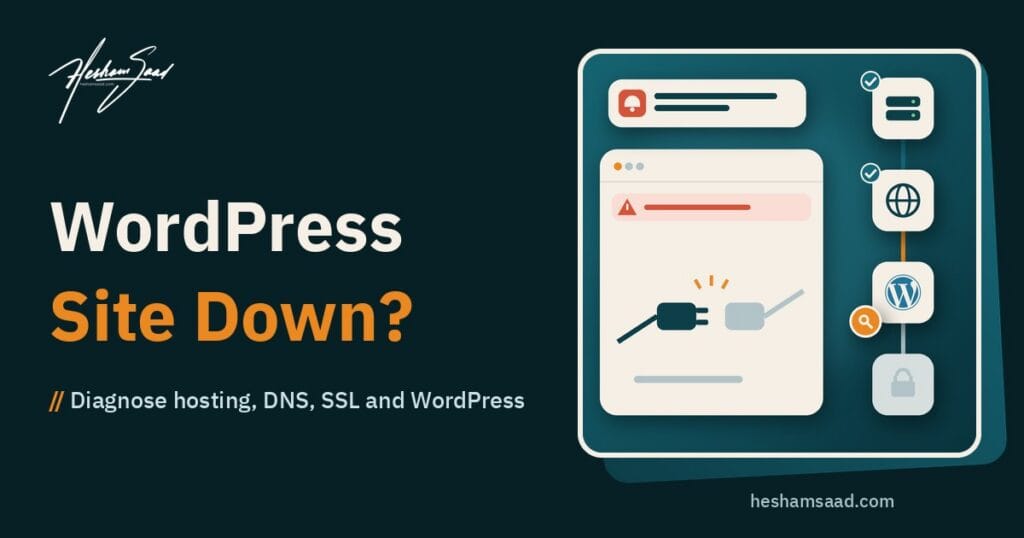
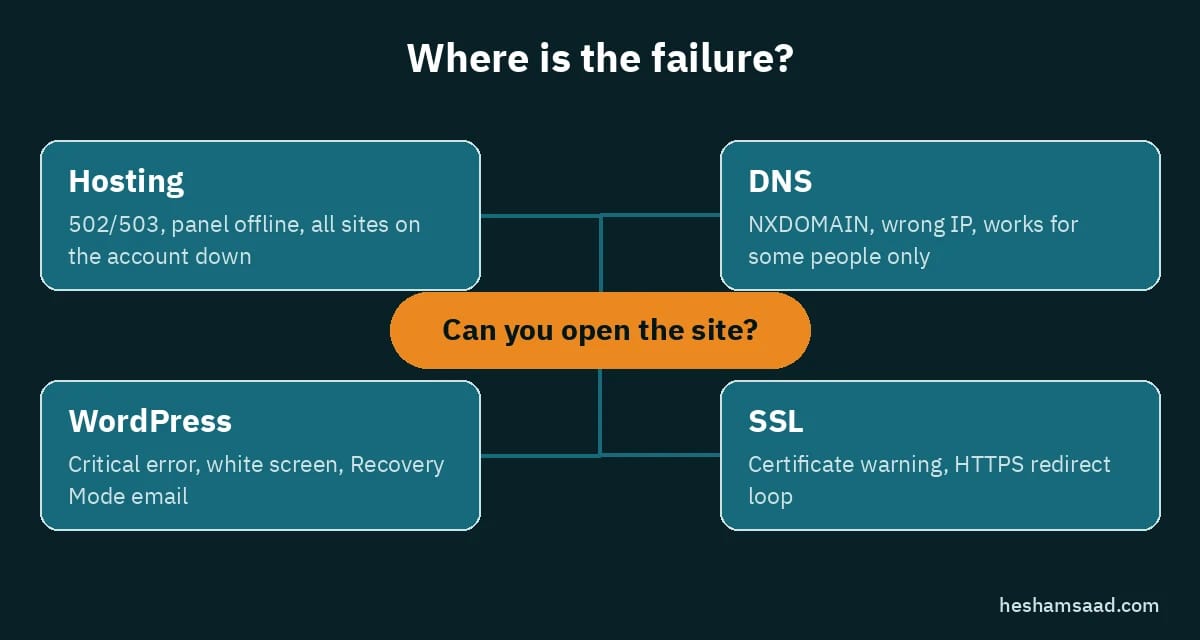
Treat the stack as four layers. Fix the wrong layer and you can make a WordPress website not loading problem worse (for example by changing DNS while the host is simply rebooting).
| Layer | Typical signs | Where to check | Safe first move |
|---|---|---|---|
| Hosting | 502/503, panel offline, all sites on the account down | Hosting dashboard, status page, support chat | Confirm account active; ask if the server is under maintenance |
| DNS | NXDOMAIN, wrong IP, works for some people only | Registrar DNS, lookup tools, TTL timing | Compare A/AAAA/CNAME to the IP your host shows |
| WordPress | Critical error, white screen, Recovery Mode email | Recovery link, error logs, plugins/themes | Use Recovery Mode or disable the last change via SFTP |
| SSL | Certificate warning, HTTPS redirect loop | Browser padlock details, host SSL panel | Renew or reissue cert; avoid force-HTTPS until cert is valid |
A useful rule: if every site on the same hosting account is offline, start with hosting. If only this domain fails while another domain on the same server loads, look at DNS and SSL for that domain, then WordPress. If the server responds and shows a WordPress critical error, stay inside WordPress and do not touch nameservers.
For everyday plugin and theme faults that do not take the whole site offline, keep a bookmark to the guide on common WordPress errors and how to resolve them. That article is for errors you can still open and debug; this one is for when customers cannot reach you at all.
Eight safe self-checks before you call support
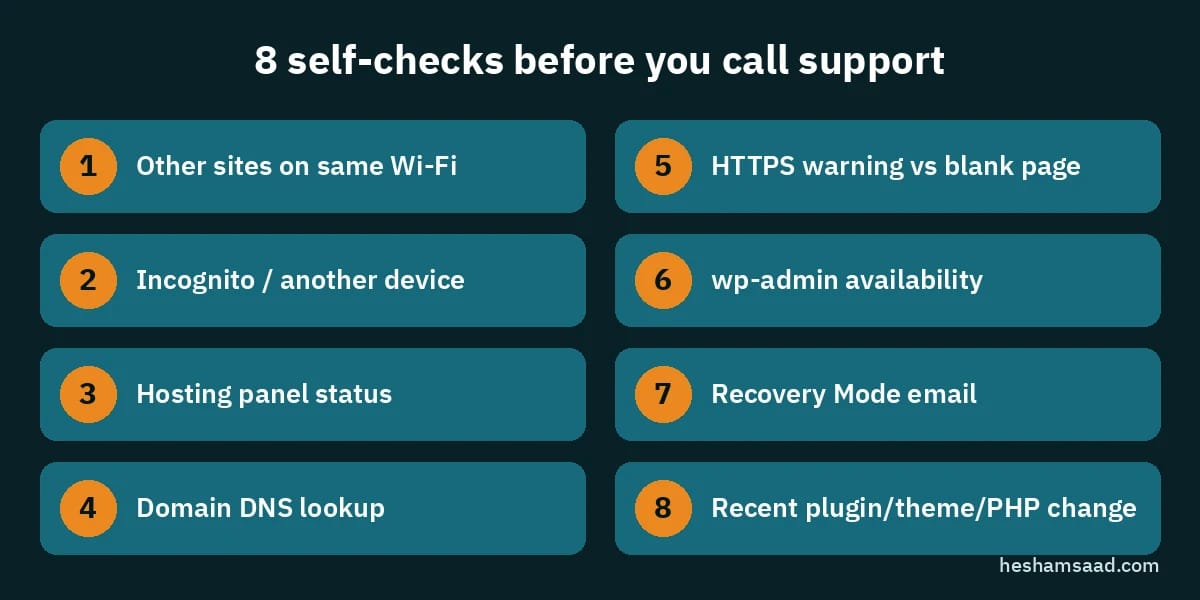
Run these in order. Stop when you find a clear layer. Do not delete files, empty the database or “reset” WordPress while you are still guessing.
- Check other sites on the same network. Open a major news site and your bank. If the whole connection is broken, fix Wi-Fi or try mobile data before you touch WordPress.
- Try a private window and a second device. Cached redirects and old service workers can make a healthy site look dead on one phone.
- Open the hosting panel. Confirm the account is active, disk is not full, and the host is not showing a region-wide incident. Many MENA business sites sit on shared or cloud panels where a suspended invoice looks exactly like a WordPress site offline event.
- Confirm DNS at the registrar. Compare the A record to the IP listed in hosting. If you changed nameservers in the last 24 to 48 hours, wait for TTL and ask who changed them.
- Read the browser security screen carefully. A certificate warning is not the same as a blank page. Note the hostname the certificate claims to cover.
- Try /wp-admin/. If the front end is blank but admin loads (or the opposite), you already know WordPress is partially running and the failure is likely a theme, plugin or front-end cache.
- Check email for Recovery Mode. WordPress can email administrators a special link after a fatal error. Official recovery mode documentation explains that this link lets you log in while the broken plugin or theme stays deactivated for that session.
- List the last change. Plugin update, theme switch, PHP version change, new firewall rule, DNS edit, SSL renew. The last change is the first suspect, not the oldest plugin on the site.
If step 3 shows hosting is healthy and step 7 gave you a recovery link, you are in WordPress territory. If steps 3 and 4 fail, pause WordPress debugging and talk to the host or the person who controls DNS.
White screen, WordPress critical error and Recovery Mode
WordPress documents a public critical error screen and a recovery flow for administrators. When PHP hits a fatal error, visitors may see a generic message while admins receive email with a recovery link. That link is time-limited and tied to the site; treat it like a password reset link and do not forward it into a public chat.
Inside Recovery Mode you can deactivate the plugin or theme that is breaking the site, then exit recovery and retest. Official debugging documentation also describes enabling WP_DEBUG and logging to a file when you have SFTP or file manager access. On a live business site, prefer logging to a file over printing errors on the public page.
If you cannot reach admin and have no recovery email, the classic safe approach from WordPress troubleshooting guidance is to rename the plugins folder via SFTP or the host file manager so WordPress loads without plugins, then rename it back and reactivate one by one. Do the same for a recently switched theme by temporarily activating a default theme only if you understand that visitors will see the default design until you restore yours.
Memory exhaustion and exhausted PHP execution time often present as a white screen. WordPress hosting documentation stresses choosing a host that meets current PHP and database requirements; if your host just forced a PHP upgrade, read that against the guide on updating PHP on a WordPress site without breaking plugins before you roll versions back and forth.
Never leave WP_DEBUG display on for the public site after you finish. Turn display off, keep logging if you still need it, and remove temporary must-use debug plugins when the incident is closed.
DNS and domain problems that look like WordPress failures
DNS is outside WordPress. If the domain points to the wrong IP, no amount of plugin deactivation will help. Typical business mistakes in the region:
- Someone renewed the domain at a different registrar and left old nameservers in place.
- A migration changed the server IP but only half the DNS records were updated.
- A CDN or proxy was added, then removed, and the A record still points at the proxy.
- Only www or only the apex domain was updated, so one hostname works and the other fails.
Check both the bare domain and the www variant, and check HTTP versus HTTPS. If DNS is wrong, fix DNS and wait for TTL. Do not install a new WordPress copy on a temporary URL and call the incident closed; you will split content and SSL pain across two places.
Email that suddenly fails at the same moment as the website often means MX records were overwritten during a DNS edit. If customers say forms fail and mailboxes bounce, restore MX from the host or Google Workspace / Microsoft 365 docs before you chase form plugins.
SSL certificate issues that block the whole site
WordPress HTTPS documentation explains how to run the admin and front end over SSL once a valid certificate is in place. An expired or incomplete certificate produces a scary browser interstitial that many owners describe as “the site is hacked” even when it is only SSL.
Safe order:
- Confirm in the hosting SSL panel that a certificate exists for the exact hostname customers type.
- Reissue or renew through the host (Let’s Encrypt or paid) before you change WordPress URLs.
- Only after the padlock is clean, confirm that WordPress site and home URLs use https, following official guidance on changing the site URL if a bad edit locked you out.
- Avoid stacking multiple force-HTTPS plugins on top of server redirects during an outage; one correct redirect is enough.
Mixed content (HTTPS page loading HTTP images) rarely takes the whole site down; it usually shows warnings. A full block is almost always the certificate or an HTTPS redirect loop. Loops often appear after a host-level HTTPS redirect is combined with a plugin redirect while the certificate is still invalid.
When to stop and hire emergency WordPress help
Self-checks are for clarity, not for pride. Call for help when any of these are true:
- Hosting is up, DNS is correct, SSL is valid, and you still see a critical error or white screen after Recovery Mode or plugin rename.
- You suspect a hack (spam links, mystery admin users, ransomware notes). Switch to the cleanup path in how to clean a compromised WordPress site instead of only chasing downtime.
- WooCommerce checkout or lead forms are broken during peak hours and every minute costs orders.
- You do not have SFTP, hosting login or a recent backup, and you are about to guess.
- A restore is required and you have never restored this host before. Practice belongs on staging; production restores need a careful hand. See how to restore a WordPress site from backup for the process you should expect a pro to follow.
When you hire WordPress support Egypt or a remote engineer, send: the symptom screenshot, the time it started, the last change, hosting login (or a temporary collaborator), DNS registrar access if DNS is in doubt, and whether a backup from before the incident exists. Ask them to work on a copy when possible, keep a new backup before changes, and write down what they changed.
Ongoing prevention is cheaper than midnight rescue. A structured WordPress care plan for business sites usually includes updates, uptime checks, backups and a human who already knows your stack. Pair that with a simple maintenance checklist you can run monthly so small warnings never become a full outage.
After the site loads again: verify before you celebrate
Loading the homepage is not the finish line. Spend fifteen minutes on a business checklist:
- Home, key landing pages and the contact page load on phone and desktop.
- wp-admin login works for your own user; unexpected admins are gone.
- Contact forms deliver a test message to a real inbox.
- If you sell online: add to cart, reach checkout, confirm payment methods appear (use test mode where you can).
- SSL padlock is clean on apex and www.
- No recovery mode banner left for normal users.
- Caching and CDN purged so customers are not still seeing the error page.
- Backup completed after the fix, not only before.
Then write a short incident note: root cause, fix, and what you will change (staging for updates, PHP upgrade plan, monitoring). Official WordPress backup documentation still applies: keep backups off the same server when you can, and test restores before you need them.
Frequently asked questions
Why does my WordPress website not loading on my phone but work on the office computer?
That pattern often points to DNS propagation, a mobile carrier cache, or an SSL problem that one device has already bypassed. Retest on mobile data versus Wi-Fi, then compare the IP each device resolves. If both devices hit different IPs, fix DNS before plugins.
Is a WordPress critical error the same as being hacked?
No. A critical error means PHP stopped with a fatal error, commonly from a plugin, theme or PHP version mismatch. A hack can cause fatal errors, but most critical errors after an update are accidental. Look for Recovery Mode email and the last change first; treat malware separately if you see injected users, spam pages or unknown cron jobs.
Should I restore a backup immediately when the site is offline?
Only after you know hosting and DNS are healthy and you have a backup from before the failure. Restoring over a wrong DNS target or a full disk wastes time and can overwrite the only good copy. Prefer fixing the broken plugin when the failure is clearly from an update; restore when files or the database are damaged or unknown.
Can I fix downtime without wp-admin access?
Yes, partially. Hosting panels, SFTP, phpMyAdmin, DNS and SSL tools do not need wp-admin. Recovery Mode email is the bridge back into admin after a fatal error. If you have none of those access paths, your priority is recovering credentials from the host or agency, not installing a second WordPress site on a subdomain.
Get the site back, then harden the process
A down site is a process failure as much as a technical one: updates without staging, DNS edits without a checklist, SSL renewals nobody owns, and no named person for the first hour. Use the layer map above, run the eight checks, and stop when the next step needs privileged access you do not have.
If you want a second pair of eyes on an active outage or a plan so the next one is shorter, book a free consultation and bring your hosting and domain details. We will tell you which layer failed, what is safe to do yourself, and what should wait for a controlled fix.
References
- WordPress documentation: Troubleshooting FAQ
- WordPress documentation: Common WordPress errors
- WordPress documentation: Recovery Mode
- WordPress Developer Resources: Debugging WordPress
- WordPress documentation: HTTPS for WordPress
- WordPress documentation: Changing the site URL
- WordPress documentation: WordPress backups
- WordPress documentation: Hosting
- WordPress Developer Resources: Editing wp-config.php