هذا المقال متوفر باللغة العربية — اقرأ بالعربية
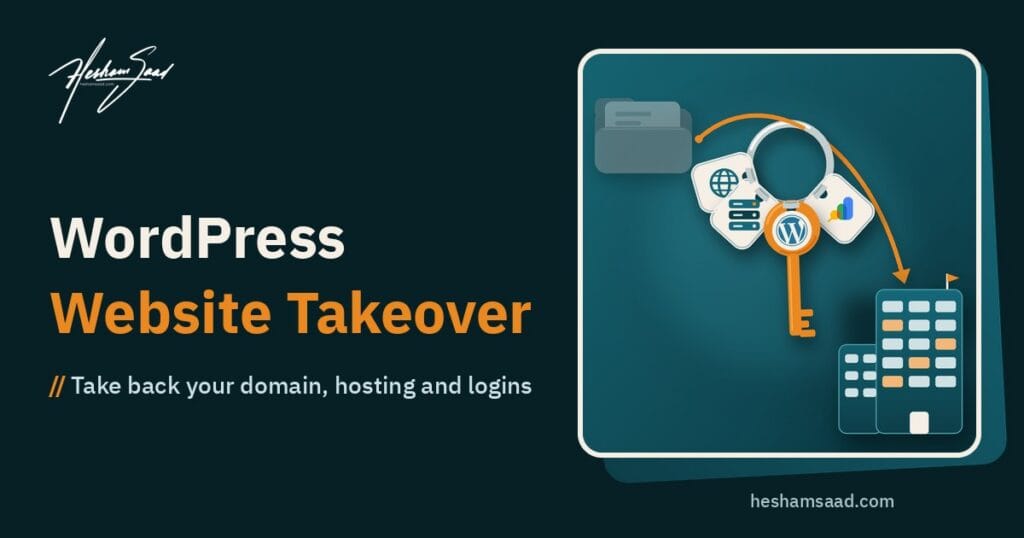
A WordPress website takeover is what happens when a business owner needs to take full control of a site that someone else built and still holds the keys to. Maybe your freelancer stopped answering, the agency closed, the contract ended on bad terms, or you simply want to move to a new team. In each case the website is yours on paper, yet the domain, the hosting account and the admin password may all sit in another person’s inbox. This guide shows you, in a calm order, how to get every account back into your company’s name and hand the site to new support without losing data or search traffic.
Most of the steps below are things you can start yourself today. The technical parts, such as resetting access through the hosting panel or cleaning up old accounts, are usually where a developer saves you time. If you would rather have someone handle it from start to finish, our team offers a full WordPress website takeover as part of our development and support service.
Signs it is time to take over your WordPress website
A takeover is not the same as recovering a hacked site. Nothing may be broken at all. The problem is control. These situations come up again and again with business owners in Egypt, Saudi Arabia and the Gulf:
- Your developer has not replied for weeks, and you need a small change or an urgent fix.
- You only have an Editor account, so you cannot install a plugin, add a user or see the settings.
- Domain or hosting renewal invoices go to someone else, and you only hear about them when the site goes offline.
- You do not know where the site is hosted or who your domain registrar is.
- Premium plugins or the theme stopped receiving updates because the licence belonged to the developer’s account.
- You want to switch WordPress developer, but the current one controls every login.
If two or more of these sound familiar, treat the takeover as a small project with its own checklist, not as a password you will sort out “later”.
Who should own what: the accounts behind a WordPress site
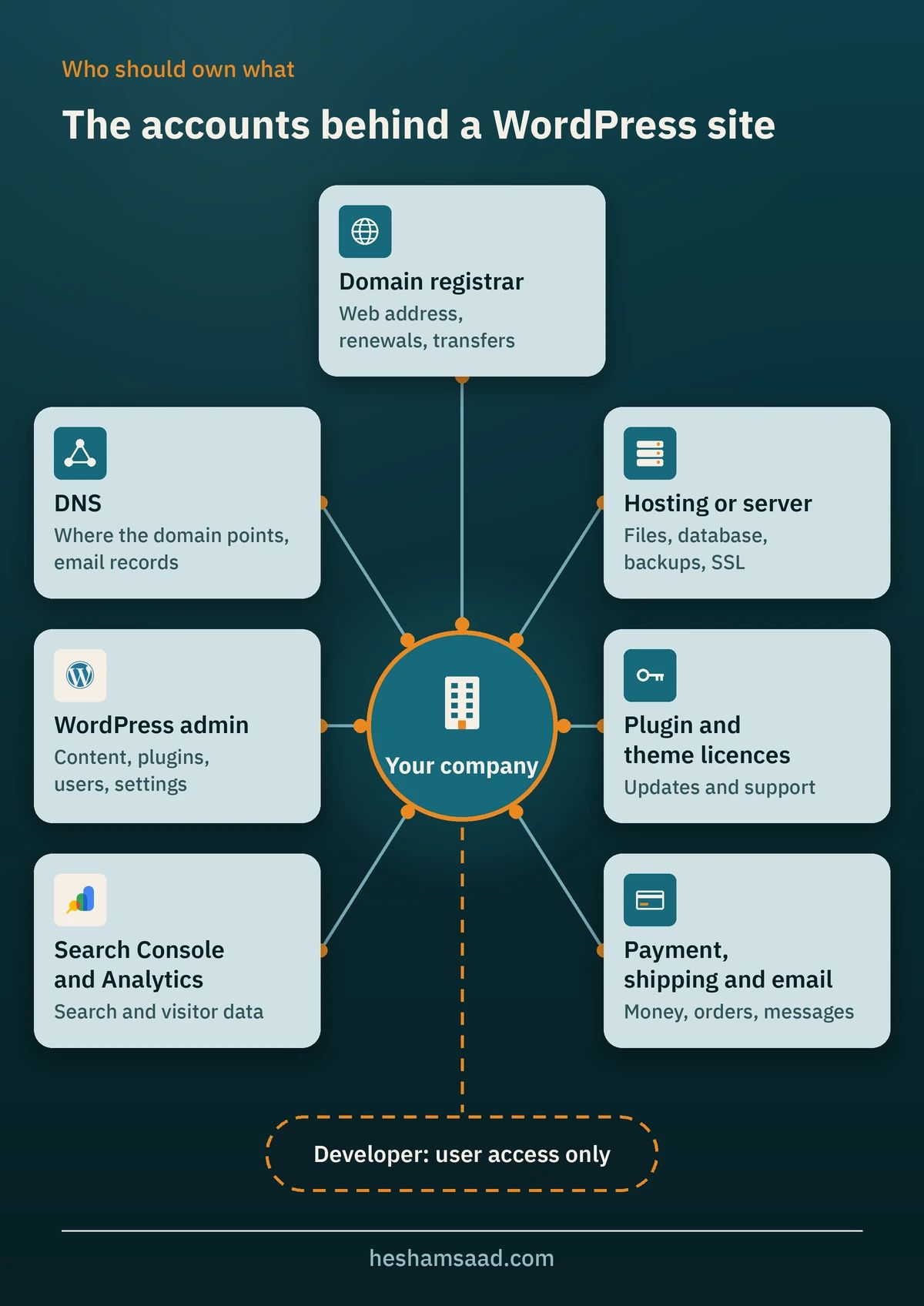
A WordPress site is not one account. It is a chain of services, and the weakest link is usually the one registered under someone else’s email. Here is the full picture:
| Account | What it controls | Who should own it | What a developer needs |
|---|---|---|---|
| Domain registrar | Your web address, renewals and transfers | Your company, with a company email | Usually nothing, or DNS access only |
| DNS | Where the domain points, plus email records | Your company | Edit access when a change is needed |
| Hosting or server | Files, database, backups, SSL | Your company, paid with your card | A user or team access, not the main login |
| WordPress admin | Content, plugins, users and settings | At least one Administrator account in your name | Their own named account |
| Premium plugin and theme licences | Updates and support | Your company account where possible | The licence key, not ownership |
| Google Search Console and Analytics | Search data and visitor data | Your Google account as owner or Administrator | User access with the role they need |
| Payment, shipping and email services | Money, orders and messages | Your company, in your legal name | API keys set up in your account |
The goal of the takeover is simple: the third column must be true for every row, and the fourth column must be the only access anyone outside your company keeps.
Before you start: collect what you already have
You probably have more clues than you think. Spend an hour gathering them before you contact anyone.
- Invoices and card statements. Search for payments to hosting companies, domain registrars and plugin shops. The name on the charge tells you where each account lives.
- Old emails. Search your inbox for “welcome”, “renewal”, “cPanel”, “hosting” and the domain name itself.
- Your contract or quotation. Check whether it says who owns the domain, the hosting and the code.
- Saved logins. Look in your browser’s password manager on the office computer.
- Public domain records. Use ICANN Lookup to see which registrar holds your domain and its current status. Personal contact details are often hidden, but the registrar name alone tells you where to go.
Then write to the old developer, politely and in writing. A short, friendly message works far better than an angry one: thank them, say you are moving support in-house or to a new team, and list exactly what you need. Ask for admin access in your name, the hosting account details or a transfer, the domain transfer code, the licence keys and a recent full backup. Give a reasonable date. Many takeovers end right here, because most developers are simply busy, not hostile.
How to do a WordPress website takeover step by step
Work in this order. The domain comes first because whoever controls it controls where your website and, often, your email point.
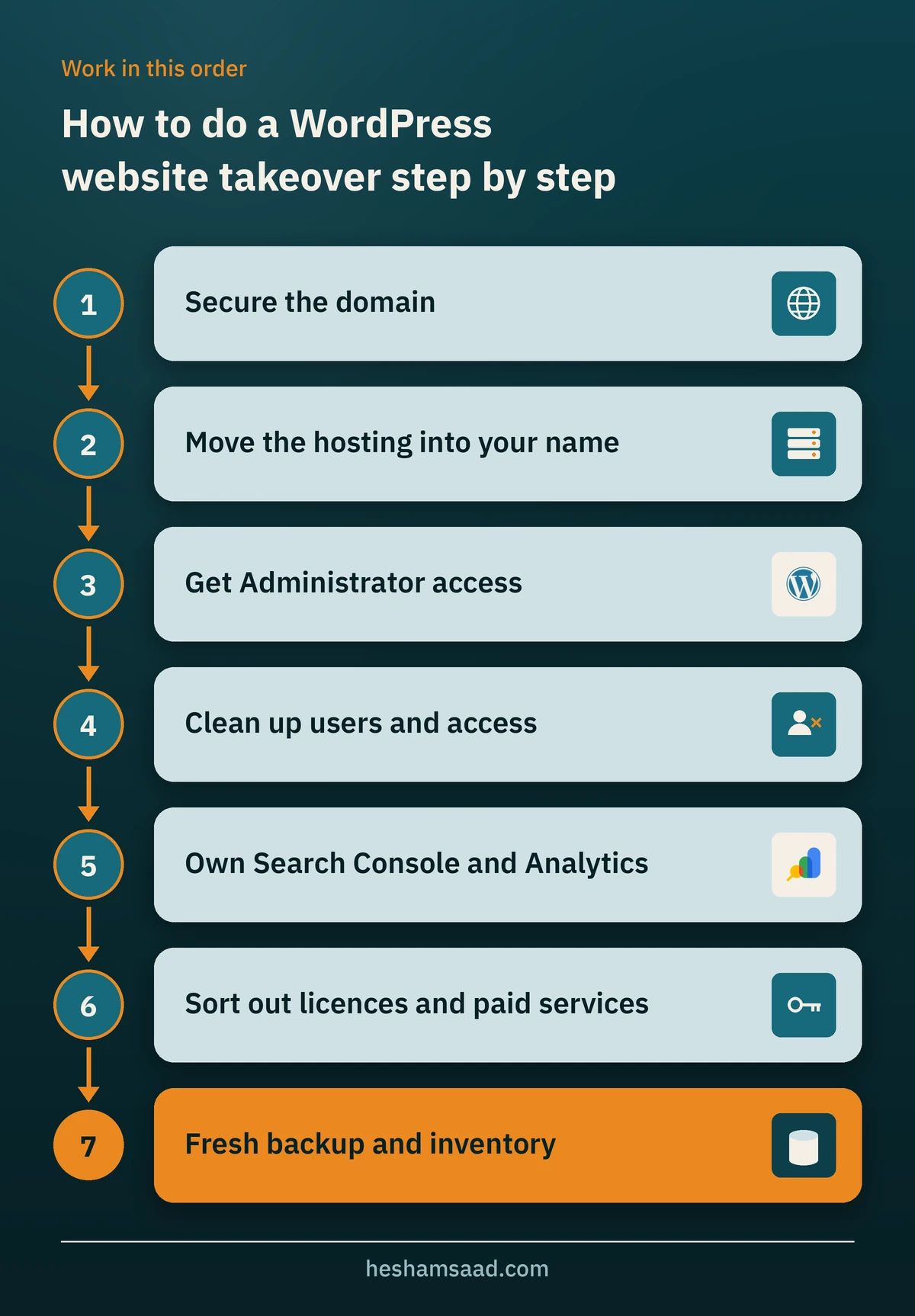
Step 1: Secure the domain
For generic domains such as .com, .net or .org, ICANN’s Transfer Policy says the Registered Name Holder is the only party that can approve or deny a transfer to another registrar. If your company is the registered holder, the registrar must give you the transfer code (often called the AuthInfo or EPP code) and remove the transfer lock within five calendar days of your request, if its control panel does not already let you do this yourself. The policy also says a registrar cannot refuse to release the code just because of a payment dispute between you and the registrar.
Three practical points:
- If the domain is in the developer’s personal name, they are the legal holder in the registrar’s eyes. You will need their cooperation to change the owner details or move it to your account, which is why this step deserves the most attention in your message to them.
- Changing owner details can trigger a temporary transfer lock at some registrars. ICANN is also in the middle of revising its transfer rules, so ask your registrar which order to follow before you change anything.
- Country domains such as .eg and .sa follow their own national registry rules, not ICANN’s policy for generic domains. Check the steps with the registry or the accredited registrar that sold you the name.
Step 2: Move the hosting into your name
Hosting companies have their own ownership checks, usually based on the account email, the payment card or an official company document. If the account is already in your company’s name, ask support to reset the main login to your company email. If the site sits inside the developer’s own reseller or agency account, you cannot simply take it over. The usual route is to open a hosting account in your name and have the site copied there, with a full backup taken first. Our guide to WordPress backup and restore explains what a complete backup must include.
Step 3: Get Administrator access to WordPress
If you know the email address on an Administrator account, the “Lost your password?” link on the login page is the easiest route. If that email belongs to the old developer, WordPress documents several other ways to reset a password, depending on the access you still have:
- phpMyAdmin from your hosting panel, by editing the user’s password in the users table.
- WP-CLI on the server, where
wp user listshows all users andwp user updatesets a new password. - FTP or the emergency password reset script described in the WordPress documentation, which must be deleted from the server straight after use.
All of these need hosting access, which is why Step 2 comes first. Once you are in, create a fresh Administrator account with your company email instead of relying on the old one.
Step 4: Clean up users and every way in
WordPress has six predefined roles, and on a normal single site the Administrator can do everything, including installing plugins and managing other users. Go to Users, then All Users, and review every Administrator. For the old developer’s account, you have two choices: delete it and assign their posts to your account, or downgrade it if they will still do some work for you. Then close the doors that a password change alone does not close:
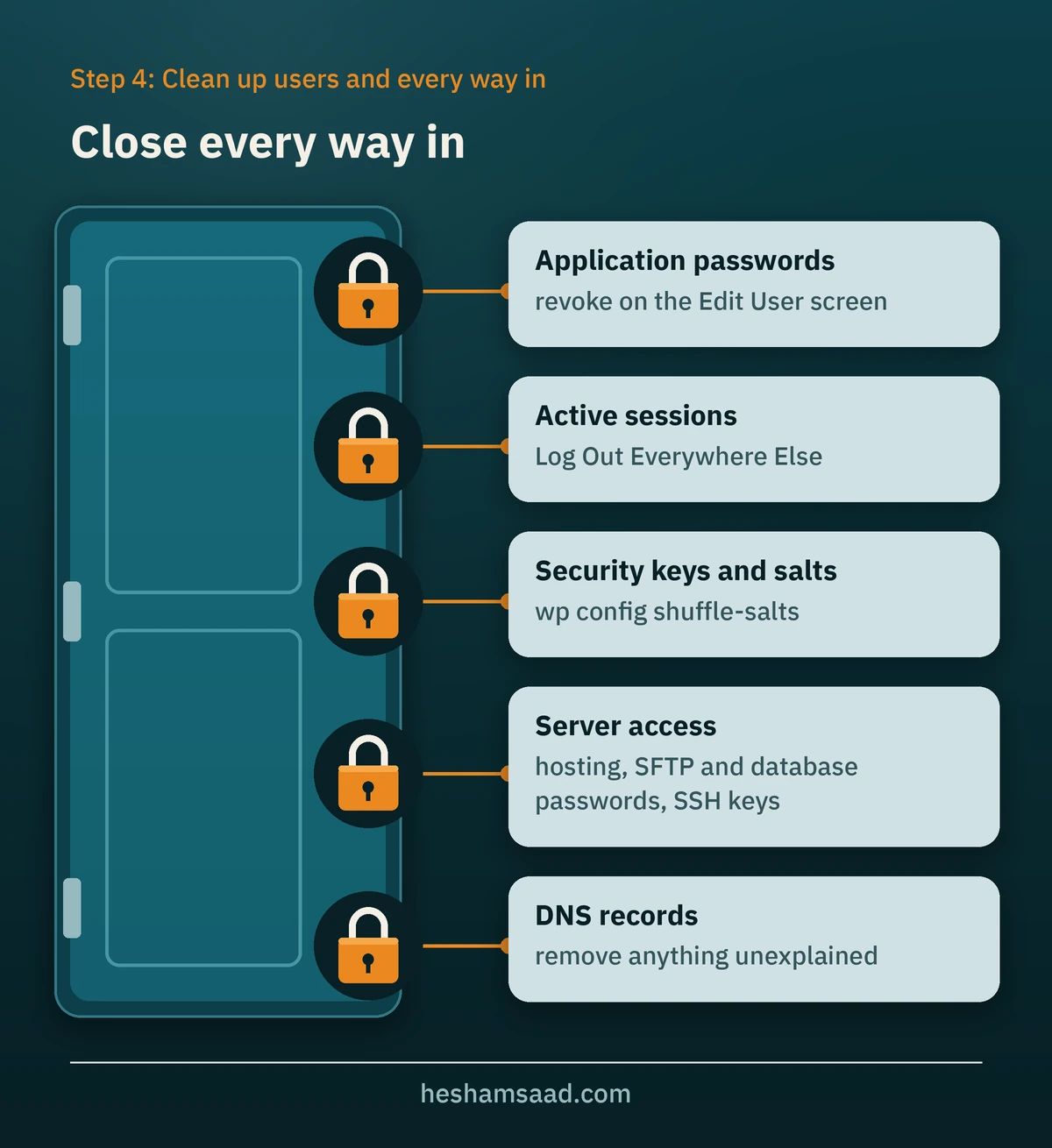
- Application passwords. These let tools and services connect to the site. On the Edit User screen you can view and revoke existing ones.
- Active sessions. The “Log Out Everywhere Else” button on the profile screen ends other logged-in sessions for that user.
- Security keys and salts. Changing the keys in wp-config.php invalidates all existing login cookies, so everyone has to log in again. WP-CLI can do this with
wp config shuffle-salts. - Server access. Change the hosting, FTP or SFTP and database passwords, and remove any SSH keys or extra panel users you do not recognise.
- DNS records. Check for records nobody can explain, especially ones pointing to servers you do not use.
For the login itself, add two-factor authentication and the other measures in our guide to securing your WordPress login.
Step 5: Take ownership of Google Search Console and Analytics
Search Console has two kinds of owner. A verified owner proved ownership with a token, such as an HTML file, a meta tag or a DNS record. A delegated owner was added by a verified owner. If the only verified owner leaves, Google’s advice is to verify ownership yourself to keep or regain access. After you verify, you can remove the previous owner. Google also notes that removing an owner does not delete their verification tokens, so you need to remove those tokens from the site or DNS as well, or they could verify again.
For Google Analytics, make sure your own Google account holds the Administrator role. Only an Administrator at account level can delete users, and Analytics will not let the last Administrator remove themselves, so ask the old developer to add you as Administrator before they leave.
Step 6: Sort out licences and paid services
List every premium plugin and the theme, with the account each licence is registered under and its renewal date. If a licence belongs to the developer’s account, ask whether the vendor allows a transfer. If not, plan to buy your own licence before the old one expires so updates do not stop. Do the same for payment gateways, shipping companies, SMS or email services and any API keys in WooCommerce: they should all be in your company’s legal name.
Step 7: Take a fresh backup and an inventory
Before the new team changes anything, take a full backup of files and database and store a copy outside the hosting account. The built-in Tools, then Export screen is useful but not a backup: it creates an XML file with posts, pages, comments, custom fields, terms and users, and does not include your plugins, theme or full site files.
Then record what you have. The Site Health screen under Tools has an Info tab that lists the active theme, plugins, server and database details, and it includes a button to copy all of it to your clipboard. Paste that into your ownership file, which we cover below.
What if the developer will not cooperate?
Most takeovers are friendly. When they are not, keep your head and keep everything in writing.
- Do not change things in anger. Deleting their account before you have hosting access can lock you out completely.
- Use the providers’ official processes. Registrars and hosts deal with ownership disputes regularly and will ask for proof such as invoices, company documents or the payment card.
- Look at your contract. If it says the domain and site belong to your company, that document matters.
- Get legal advice for real disputes. If a developer refuses to release a domain in their personal name, that is a legal and contractual question, not a technical one.
- Rebuilding is the last resort, not the first. If you control the domain but not the hosting, a new team can sometimes rebuild from a backup or from the public site. It costs more and takes longer, so try every other step first.
How to choose a new developer or WordPress support service
The reason to switch WordPress developer is to avoid ending up here again. Ask which editor they will work in, because it decides who can edit pages after the handover, and Elementor vs Gutenberg explains the difference. When you talk to a new freelancer, agency or WordPress support service, ask these questions before you sign:
- Will every account be registered in my company’s name, with you added as a user?
- Will you give me a written list of every access you hold?
- How do you handle updates, and do you test them on a staging copy first?
- Where are backups stored, how often, and when did you last test a restore?
- What response time do you commit to in writing for urgent problems?
- If we stop working together, what does your handover include?
Watch for red flags: a provider who insists on registering the domain under their own account, refuses to give you an Administrator login, or has no written scope. Our article on choosing a WordPress care plan goes deeper into comparing support offers, and if you suspect the old setup left security gaps, a WordPress security audit is a sensible first job for the new team.
WordPress website takeover checklist
Use this list to track progress. Each item is done only when you can log in yourself, with your company email, and the old developer no longer has access they do not need.
- Domain registrar account is in the company’s name, with the company email and auto-renew turned on.
- DNS access is in a company account, and every record is understood.
- Hosting account is in the company’s name and paid with a company card.
- At least one WordPress Administrator account belongs to the company.
- Old Administrator accounts are deleted or downgraded, with content reassigned.
- Application passwords reviewed, security keys changed, server passwords rotated.
- Search Console verified by the company, old owners and their tokens removed.
- Google Analytics Administrator role held by a company account.
- Premium plugin and theme licences listed with owner and renewal date.
- Payment, shipping and email services in the company’s legal name.
- Full backup stored outside the hosting account, and a restore tested.
- Site Health info and the account list saved in one ownership file.
Keep it from happening again: an ownership file
Once the takeover is done, create a single document that lists every account from the table above, the email that owns it, who else has access, and each renewal date. Store it somewhere two people in your company can reach. A few habits make a big difference:
- Register accounts with a role email such as a company IT or web address, not an employee’s personal email.
- Keep at least two Administrator accounts on the business side, both with two-factor authentication.
- Give every developer or agency their own named account with only the role they need, so you can remove them in one click.
- Review the list of users and owners every few months, and every time a supplier changes.
Frequently asked questions
Can I take over a WordPress site from a developer who has stopped replying?
Often yes, if the domain and hosting are already in your company’s name. With hosting access you can reset WordPress passwords through phpMyAdmin or WP-CLI. If the domain or hosting is in the developer’s personal account, you will need their cooperation or the provider’s dispute process.
Will changing developers affect my Google rankings?
Changing who looks after the site does not change anything Google sees. Rankings are at risk when the takeover involves a careless move, such as changing URLs, losing content, or breaking the site during a hosting migration. Keep the same domain and URLs, and check Search Console after any move.
Should I delete the old developer’s account straight away?
Only after you have your own Administrator account and hosting access. When you delete a WordPress user, assign their posts and pages to another user so you do not lose content.
Do I need to rebuild my website after a takeover?
Usually not. A takeover is about control, not design. Once you have access, a review will show whether the site only needs updates and a clean-up or whether parts of it are worth rebuilding.
If you are stuck at any step, or you want the whole WordPress website takeover handled for you, from domain and hosting to users, licences and a clean handover file, see our WordPress development and support service or book a free consultation and tell us what access you have today.
References
- ICANN Transfer Policy
- ICANN Lookup
- Reset your password, WordPress documentation
- Roles and capabilities, WordPress documentation
- Your Profile screen, WordPress documentation
- Application passwords, WordPress developer docs
- wp user commands, WP-CLI
- wp config shuffle-salts, WP-CLI
- Tools Export screen, WordPress documentation
- Site Health screen, WordPress documentation
- Managing owners, users and permissions, Search Console Help
- Add, edit and delete users, Analytics Help