هذا المقال متوفر باللغة العربية — اقرأ بالعربية
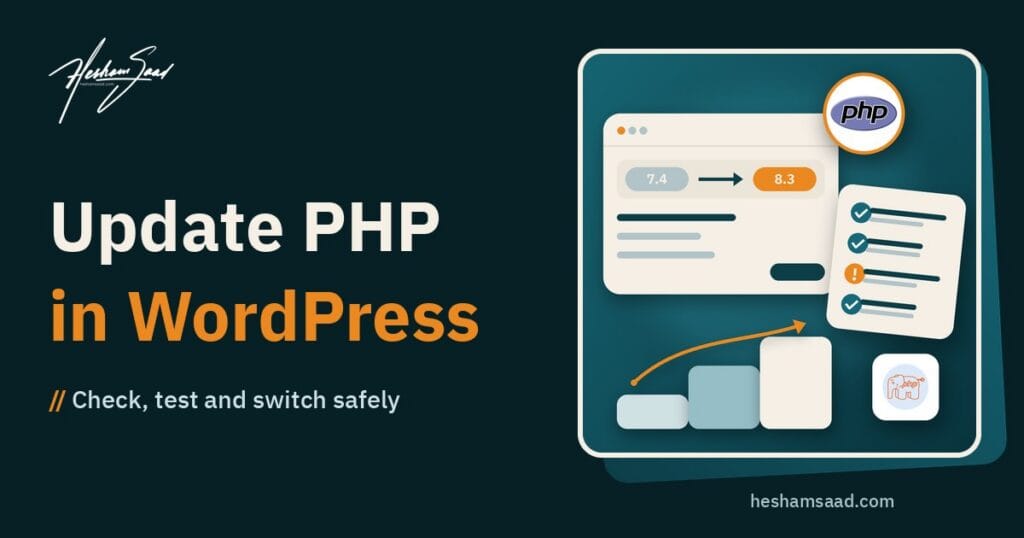
Most site owners only think about PHP when a warning on the dashboard says “PHP Update Required”, or when the hosting company sends an email about retiring an old version. This guide explains how to update PHP version in WordPress without taking your site down: how to check what you run today, which version to pick in late 2026, how to test plugins and themes first, how to switch in the hosting panel, and what to do if something breaks after the switch.
PHP is the language WordPress, your theme and every plugin are written in. Your host decides which PHP versions are available on the server, and many hosts let you change it yourself in a few clicks. The click is easy. The preparation around it is what keeps a shop or a lead generation site online, and it is exactly the part people skip.
Why your PHP version matters more in 2026
Every PHP branch has a fixed life. According to the official PHP supported versions page, each branch gets two years of active support (bug and security fixes) followed by two years of critical security fixes only. After that it reaches end of life and stops receiving fixes, even for serious security holes. A recent example is php2shell, a set of critical PHP flaws that only patched PHP versions fix.
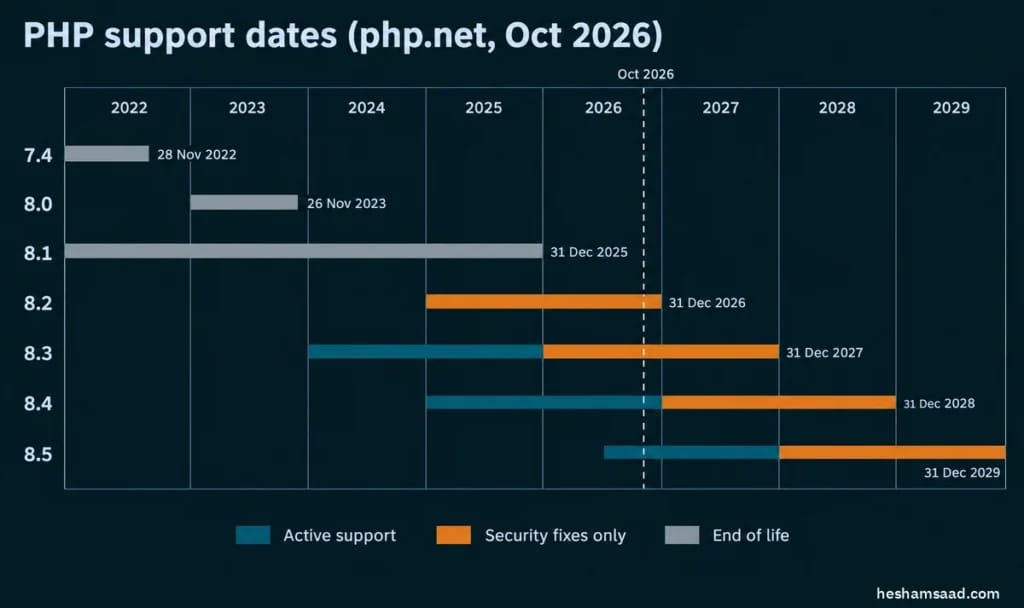
Here is where each branch stands as of October 2026, based on php.net’s supported versions and end of life pages:
| PHP branch | Active support until | Security fixes until | Status in Oct 2026 |
|---|---|---|---|
| 7.4 | Ended | 28 Nov 2022 | End of life |
| 8.0 | Ended | 26 Nov 2023 | End of life |
| 8.1 | Ended | 31 Dec 2025 | End of life |
| 8.2 | 31 Dec 2024 | 31 Dec 2026 | Security fixes only, ends this year |
| 8.3 | 31 Dec 2025 | 31 Dec 2027 | Security fixes only |
| 8.4 | 31 Dec 2026 | 31 Dec 2028 | Active support |
| 8.5 | 31 Dec 2027 | 31 Dec 2029 | Active support |
Two things stand out. PHP 8.1 lost all support at the end of 2025, and PHP 8.2 follows on 31 December 2026. If your site runs either of them, the clock is already running.
WordPress 7.0 raised the floor
WordPress itself still runs on older PHP, but less old than before. The core team dropped support for PHP 7.2 and 7.3 in WordPress 7.0, so the minimum supported version is now 7.4. Sites still on 7.2 or 7.3 stay on the 6.9 branch and will not move to 7.0 until PHP is upgraded. The WordPress requirements page recommends PHP 8.3 or greater and notes that 7.4 works only as a legacy option that has reached end of life.
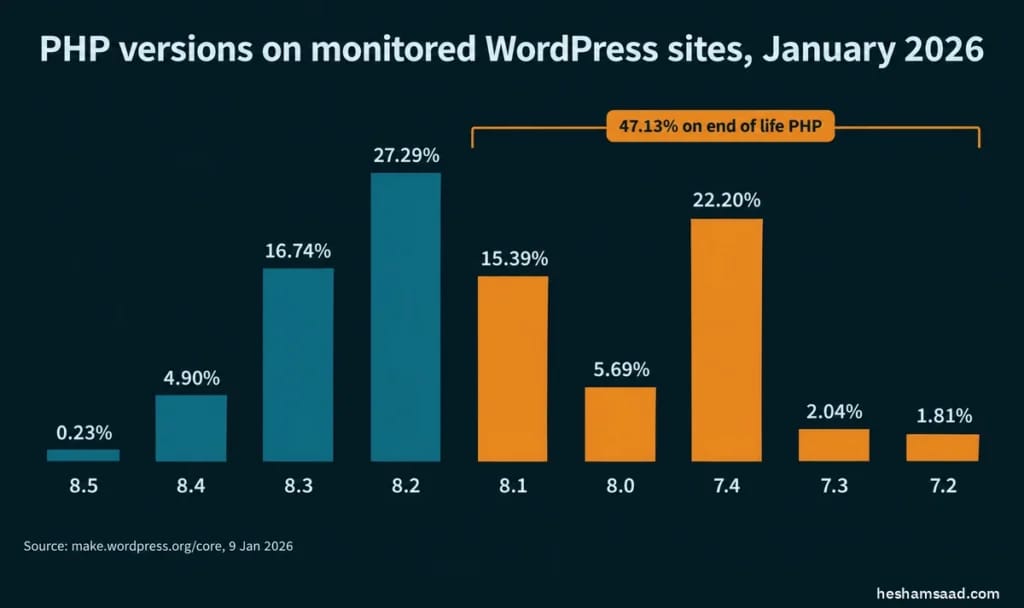
The same announcement published PHP usage across monitored WordPress sites at the time (January 2026): 22.20% on 7.4, 5.69% on 8.0 and 15.39% on 8.1, plus 2.04% on 7.3 and 1.81% on 7.2. Add those up and close to half of monitored sites were running a PHP branch with no upstream support. If you have never touched your PHP setting, there is a real chance you are in that group.
Plugins are moving too
Plugin authors follow the same direction. The WooCommerce server requirements, for example, list PHP 8.3 or greater (tested up to PHP 8.4) and a WordPress memory limit of 256 MB or more. WooCommerce still works on PHP 7.4, but its documentation warns that such versions are end of life and may expose the store to security issues. Every plugin also declares a minimum in its Requires PHP header, which the plugin header documentation describes as the minimum required PHP version. As plugins raise that number, an old server slowly locks you out of updates.
How to check which PHP version your site uses
You do not need server access for this. The WordPress.org guide to updating PHP gives the path:
- In the dashboard, open Tools, then Site Health.
- Switch to the Info tab.
- Expand the Server section and look for PHP version.
The same screen shows the PHP memory limit, the web server and the database version, which you will want in your notes later. If the Status tab shows a warning about an outdated PHP version, or the dashboard shows “PHP Update Required” or “PHP Update Recommended”, treat it as a task for this month, not someday.
Your hosting panel shows the same number, often per domain. On cPanel this is the MultiPHP Manager screen. On CloudPanel it sits under the site’s PHP Settings. If the panel and Site Health disagree, trust Site Health, because it reports what WordPress is actually running on.
Which PHP version should you choose?
Do not simply pick the highest number in the menu. Pick the highest version that WordPress, your theme and all of your active plugins support. The WordPress core handbook keeps a PHP compatibility table for each WordPress version. A short extract:
| WordPress version | Oldest PHP supported | Newest PHP supported |
|---|---|---|
| 7.0 | 7.4 | 8.5 |
| 6.9 | 7.2 | 8.5 |
| 6.8 and 6.7 | 7.2 | 8.4 |
| 6.6 | 7.2 | 8.3 |
For most business sites in late 2026, a practical rule looks like this:
- PHP 8.3 is the safe default. It is the version WordPress recommends, WooCommerce lists it as its baseline, and it keeps security fixes until the end of 2027.
- PHP 8.4 is a good choice if every plugin you rely on supports it. It is in active support and has security fixes until the end of 2028, and WooCommerce is tested up to it.
- PHP 8.5 is supported by WordPress 6.9 and 7.0, but check your plugins carefully before using it on a store or a site with many plugins.
- PHP 8.2 or lower should be treated as a version you are leaving, not one you are choosing.
If you are several versions behind, for example on 7.4, it is fine to move straight to 8.3 as long as you test properly. Testing each step in between does not make the final jump safer by itself, it just repeats the same work.
How to update PHP version in WordPress safely, step by step
This is the order we follow on client sites. It keeps the live site untouched until you know the new version works.
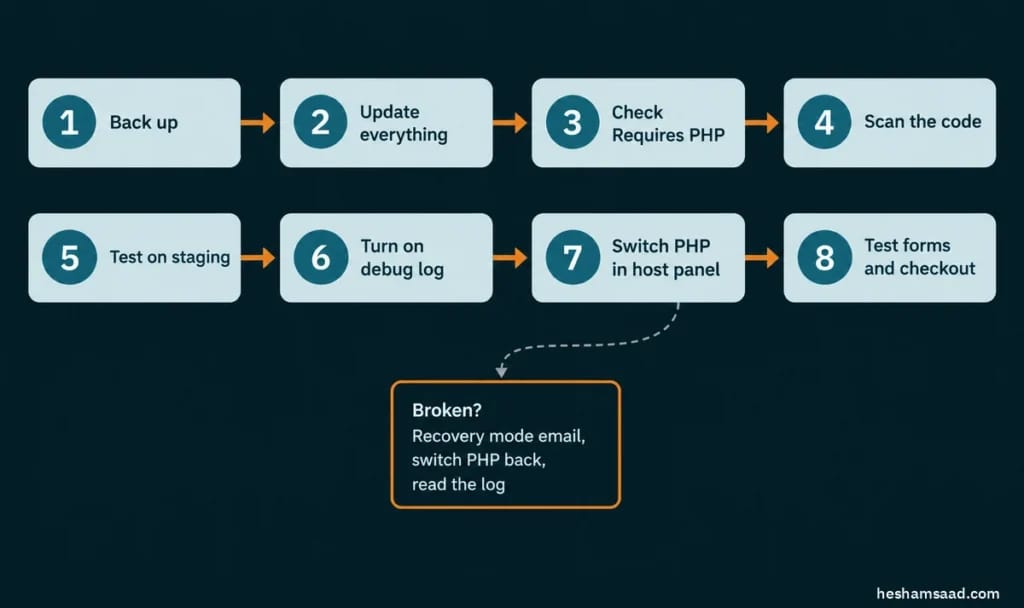
1. Take a backup you can actually restore
Back up files and the database before anything else, and store the copy away from the server. A backup only counts if you know how to bring it back, so if you have never tried, read our backup and restore walkthrough first. WordPress.org also points out that if you ever need to restore that backup, you have to switch PHP back to the old version as well, because the old code expects the old PHP.
2. Update WordPress, themes and plugins first
Open Dashboard, then Updates, and bring everything up to date while you are still on the current PHP version. Many compatibility fixes ship in normal plugin releases, so an old plugin version may fail on PHP 8.3 while the latest release works fine. Check the site after updating, so you do not confuse two separate problems later.
3. Check what each theme and plugin supports
Go through your active plugins and theme and note three things for each one: the Requires PHP value, the date of its last update, and whether the author mentions recent PHP versions in the changelog. Plugin pages on WordPress.org show the minimum PHP version in the side panel, and they show a warning when a plugin has not been tested with the latest three major WordPress releases. A plugin with no update in years is the most likely thing to break, whatever its rating.
Premium plugins and themes bought from marketplaces need extra attention, because they do not appear on WordPress.org. Check the vendor’s changelog or ask their support directly. A custom theme or plugin written for you years ago is a separate case: nobody will update it unless you ask a developer to review it.
4. Scan the code for known incompatibilities
WordPress.org suggests the PHP Compatibility Checker plugin for this step, but be careful: its plugin page now says it is no longer actively maintained, it has not been tested with recent WordPress releases, and its description talks about checks up to PHP 8.0. It also only reads code without running it, so it cannot catch problems that appear at runtime. Treat any result from it as a hint, not a verdict.
If you or your developer work with Composer, the PHPCompatibilityWP ruleset for PHP_CodeSniffer is the tool developers use. It is tuned for WordPress so it does not flag the backfills WordPress already provides. You run it against the code you want to check, with the PHP version you plan to support. Before you add any code from a guide like this to a live site, read about where custom code should live. The command from the project’s documentation looks like this, here checking a custom theme folder against PHP 8.3 and above:
vendor/bin/phpcs -p wp-content/themes/your-theme --standard=PHPCompatibilityWP --extensions=php --runtime-set testVersion 8.3-A scan finds things like removed functions and old syntax. It will not tell you whether your checkout still works. That is what the next step is for.
5. Test on a staging copy first
Make a copy of the site, switch the copy to the new PHP version and use it like a real visitor would. If you do not have one yet, here is how to set up a staging copy of a WordPress site. Many hosts let you pick a different PHP version per domain or subdomain, which makes this easy: the live site stays on the old version while staging runs the new one.
6. Turn on the debug log on staging
PHP 8 is stricter, and many problems first appear as warnings and deprecation notices before they become fatal errors. The WordPress debugging documentation gives these lines for wp-config.php. They write errors to wp-content/debug.log instead of showing them to visitors:
define( 'WP_DEBUG', true );
define( 'WP_DEBUG_LOG', true );
define( 'WP_DEBUG_DISPLAY', false );
@ini_set( 'display_errors', 0 );
They must go above the line that says “That’s all, stop editing!”. Browse the site, then open the log and note which plugin or theme file each message comes from. Remove these lines, or set WP_DEBUG back to false, when you finish testing, and never leave the log publicly reachable on a live site.
7. Switch the PHP version in your hosting panel
Once staging looks clean, switch the live site. The exact screen depends on your host:
- cPanel: the MultiPHP Manager lists your domains. Select the domain, choose the version from the PHP Version menu and click Apply. If the version you want is missing, it is not installed on the server or not available for your account, and only the host can add it.
- CloudPanel: open the site and go to its PHP Settings, where you can change the PHP version along with values such as
memory_limit. - Other hosts: look for PHP settings or PHP version in your control panel. If there is no option, ask support. The WordPress.org update guide even includes a short template email you can send.
Pick a quiet hour for the switch. Clear any page cache and server cache afterwards, so you test what PHP generates now, not a stored copy from before.
8. Test the pages that make you money
Do not stop at the home page. Go through the paths that matter to the business:
- Contact and quote forms: submit one and confirm the email arrives.
- WooCommerce: add to cart, apply a coupon, go through checkout with each payment method you offer.
- Login, registration and password reset.
- Both language versions on a bilingual site, including the Arabic pages and the language switcher.
- The admin area: the editor, media uploads, and the settings pages of your main plugins.
- Scheduled tasks such as backups and emails over the next day or two.
What usually breaks, and what the errors mean
Most problems come from older code meeting stricter rules. These are the changes we meet most often, all documented in the official PHP migration guides:
| Change | PHP version | What you see | Typical fix |
|---|---|---|---|
create_function() and each() removed | 8.0 | Fatal error, white screen or critical error message | Update or replace the plugin, or rewrite the code |
Number and string comparison changed (0 == "foo" is now false) | 8.0 | Wrong results with no error, such as a filter that stops matching | Developer review of the logic |
| Dynamic properties deprecated | 8.2 | Deprecation notices in the debug log | Update the plugin; the real fix is in its code |
| Implicitly nullable parameters deprecated | 8.4 | Deprecation notices in the debug log | Update the plugin or theme |
The PHP 8.0 backward incompatible changes page is the one behind most fatal errors on old sites, because it removed functions that older plugins used. The PHP 8.2 deprecations and PHP 8.4 deprecations mostly produce notices. A deprecation does not stop the site today. It is a warning that the code will fail in a future PHP version, so add it to the list for the plugin author or your developer.
Also check the PHP extensions your plugins need. The WordPress hosting handbook lists the required and recommended extensions, such as mysqli, curl, mbstring and intl. On some servers a newly selected PHP version starts with a different set of extensions enabled, and mbstring in particular matters on Arabic sites because it is used to handle UTF-8 text properly.
If the site breaks after the switch
Do not panic and do not start deleting plugins on the live site. Work through this order:
- Check your email. Since WordPress 5.2, when a plugin or theme causes a fatal error, WordPress shows a “technical difficulties” message and emails the admin address a link to recovery mode. In recovery mode the broken plugin or theme is paused for you, so you can log in and deactivate it.
- Switch PHP back. If the site matters more than the upgrade right now, return to the previous version in the same panel. That usually brings the site back quickly, and you can then investigate on staging.
- Read the error log. The message names the file and line, which tells you which plugin or theme failed. Our guide to white screens and 500 errors covers the general troubleshooting steps.
- Restore the backup only if data changed. If an update or a broken plugin damaged content or settings, restore the backup together with the old PHP version.
Notes for MENA site owners
A few things we see often on sites in Egypt, Saudi Arabia and the Gulf:
- Old hosting accounts keep old defaults. A site moved to shared hosting years ago may still inherit an old PHP version, even when the host offers newer ones. Nobody changes it until something forces the issue, which is why a PHP version check belongs in any WordPress care plan.
- Local plugins need a closer look. Payment gateway, shipping and SMS plugins made for regional services are sometimes updated less often than global plugins. Check their PHP support before you switch, and contact the provider if the plugin page says nothing.
- Nulled or pirated themes are a dead end. They receive no updates, so they cannot be fixed for newer PHP, and they can carry malicious code. Replacing them is part of the upgrade.
- Time it around your season. Do not change PHP on a store in the week before Ramadan offers, White Friday or a big campaign. Do it in a quiet period and leave time to test.
When to hand the job to a developer
For a simple brochure site with a few well known plugins, a careful owner can do this upgrade with the steps above. It is worth bringing in a developer when:
- The site uses a custom theme or custom plugin that nobody has touched in years.
- A plugin you depend on is abandoned and needs a replacement, which often means moving data or settings.
- The site is a WooCommerce store, a membership site or anything with payments, where a quiet failure costs real money.
- You have no staging copy and no tested backup.
- The scan or the debug log shows errors you do not understand.
On our SiteCare maintenance plans, PHP upgrades are handled as part of the routine: we test on staging, fix or replace what fails, switch at a quiet time and check the important paths afterwards. If an old custom theme turns out to be the blocker, rebuilding it is a custom WordPress development job, and it is usually cheaper than patching code that will fail again at the next PHP version.
PHP upgrade checklist
- Current PHP version noted from Site Health (Tools, Site Health, Info, Server).
- Target version chosen: the newest one that WordPress, the theme and all active plugins support.
- Full backup of files and database stored off the server, and a known way to restore it.
- WordPress, theme and plugins updated on the current PHP version, and the site checked.
- Each plugin’s
Requires PHP, last update date and changelog reviewed. - Abandoned, nulled or unsupported plugins replaced.
- Staging copy switched to the new version, with the debug log on.
- Debug log reviewed, errors fixed, deprecations listed.
- Live site switched at a quiet time, caches cleared.
- Forms, checkout, login, both languages and admin screens tested.
- Debug settings turned off and the date of the change written in the maintenance log.
Frequently asked questions
Will updating PHP delete my content or settings?
No. Changing the PHP version does not touch your database or your uploads. The risk is that some code stops running correctly on the new version, which can hide the site behind an error until it is fixed or PHP is switched back. That is why the backup and staging steps come first.
Can I switch back if something goes wrong?
Usually yes, from the same hosting panel, as long as the old version is still installed on the server. Some hosts remove end of life versions over time, so do not count on the old version staying available forever.
Is PHP 7.4 still acceptable for WordPress?
WordPress 7.0 still runs on it, but PHP 7.4 reached end of life on 28 November 2022 and receives no security fixes. WordPress.org lists it only as a legacy option. Plan to move to 8.3 or newer.
Should I jump straight to PHP 8.5?
Only if your plugins support it. WordPress 6.9 and 7.0 support PHP 8.5, but plugin support varies. For most business sites, 8.3 or 8.4 is the sensible target today, with 8.5 as the next step once your plugins confirm support.
A final word
Updating PHP is a ten second change in a hosting panel wrapped in a few hours of careful work around it. Do the backup, update everything, test on staging, then switch, and keep the old version one click away while you check the site. If you would rather have someone handle the testing and the fixes, book a free consultation and we will look at your site’s PHP version, plugins and hosting together.
References
- WordPress.org: Requirements
- WordPress.org: Get a faster, more secure website: update PHP today
- WordPress Core Handbook: PHP Compatibility and WordPress Versions
- Make WordPress Core: Dropping support for PHP 7.2 and 7.3
- WordPress Hosting Handbook: WordPress 7.0 Server Compatibility
- WordPress Hosting Handbook: Server Environment
- PHP.net: Supported Versions
- PHP.net: Unsupported Branches
- PHP Manual: Backward incompatible changes in PHP 8.0
- PHP Manual: Deprecated features in PHP 8.2
- PHP Manual: Deprecated features in PHP 8.4
- WooCommerce: Server requirements
- WordPress Plugin Handbook: Header Requirements
- WordPress.org: PHP Compatibility Checker plugin
- GitHub: PHPCompatibilityWP
- WordPress Advanced Administration Handbook: Debugging in WordPress
- Make WordPress Core: Fatal Error Recovery Mode in 5.2
- cPanel Documentation: MultiPHP Manager for cPanel
- CloudPanel Documentation: Settings