هذا المقال متوفر باللغة العربية — اقرأ بالعربية
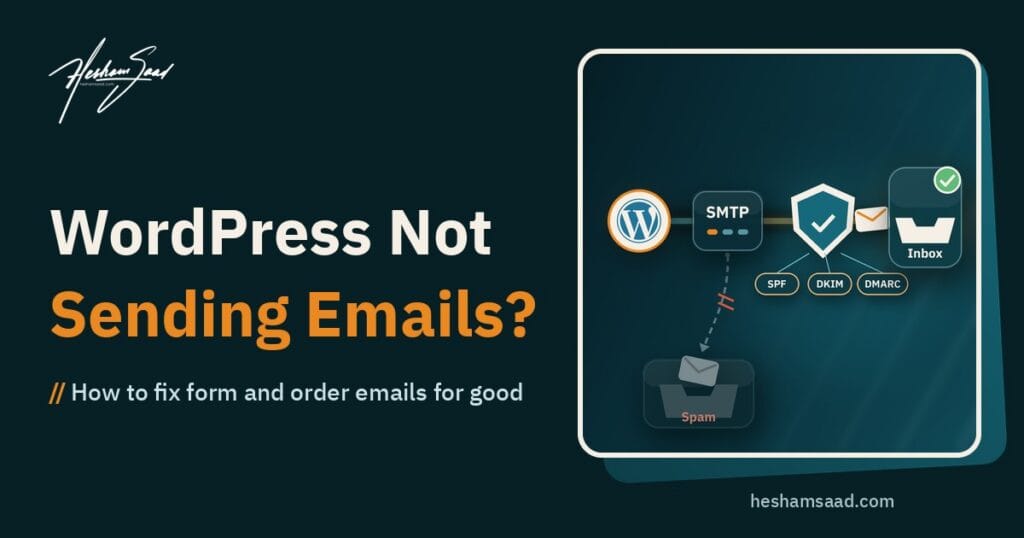
WordPress not sending emails is one of those problems that stays hidden for weeks. The contact form looks fine, the checkout works, and the site shows a polite “thank you” message. Meanwhile, the enquiry never reaches your inbox, the customer never gets the order confirmation, and a staff member who asked for a password reset gives up and calls you instead. By the time someone notices, you may have lost leads you did not know existed.
This guide explains, in plain language, why WordPress emails fail, how to find out where the message is getting lost, and what a reliable fix looks like for a business site in Egypt, Saudi Arabia or the Gulf. You will also find a checklist you can hand to your team, and the questions to ask if you decide to get help from a developer or your WordPress care plan provider.
Why missing emails cost more than you think
Most WordPress sites send more email than their owners realise. A typical business site depends on email for:
- Lead notifications from contact, quote and booking forms.
- Customer emails in WooCommerce: new order, processing order, completed order, refunds and notes.
- Admin alerts such as new user registrations, comment moderation and update notices.
- Account emails such as password resets and new account details.
When these stop, nothing on the screen breaks. That is what makes the problem expensive. A store owner may only find out when a customer complains that they paid and heard nothing back, or when a sales manager asks why the forms have been quiet for a month.
How WordPress actually sends an email
Understanding the path an email takes makes the rest of this guide much easier. WordPress has one core function for sending mail, called wp_mail, and most plugins, including WooCommerce and the popular form plugins, use it. Behind the scenes, WordPress hands the message to the PHPMailer library, which by default passes it to your web server’s own mail function.
If no sender address is set, WordPress uses “WordPress” as the sender name and an address in the form [email protected], according to the wp_mail reference on developer.wordpress.org. That default address often does not exist as a real mailbox, which is the first warning sign.
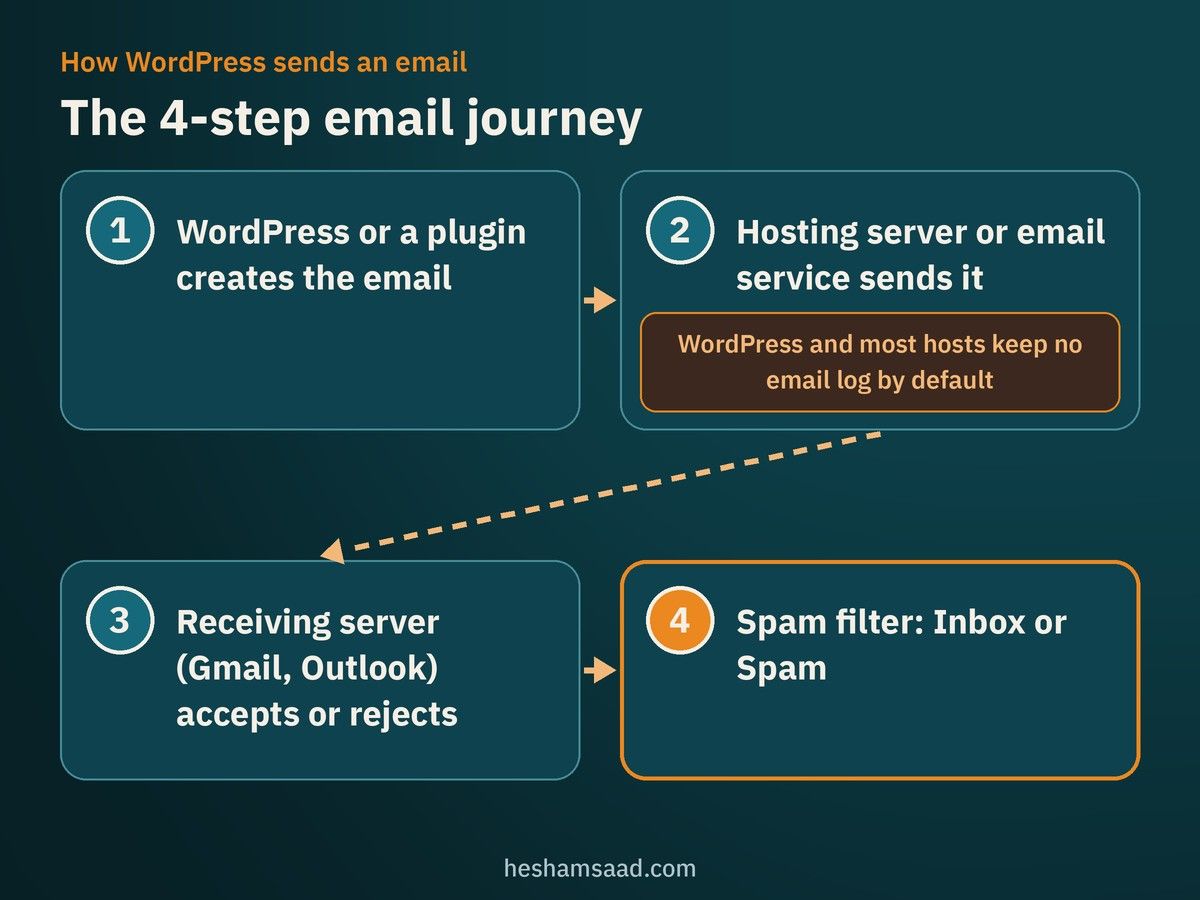
From there, the email goes through several stages:
- WordPress or a plugin creates the message.
- Your hosting server (or an email service you connected) accepts it and tries to send it.
- The receiving server, for example Gmail or Outlook, accepts or rejects it.
- If accepted, the receiver’s spam filter decides between the inbox and the spam folder.
The WP Mail Logging plugin page on WordPress.org describes the same journey and makes an important point: WordPress and most hosts do not keep a log of outgoing emails by default. So when an email “disappears”, you usually have no record of which stage failed.
Not sent versus not delivered: two different problems
WooCommerce’s own email documentation splits email trouble into two groups, and the split is useful for any WordPress site:
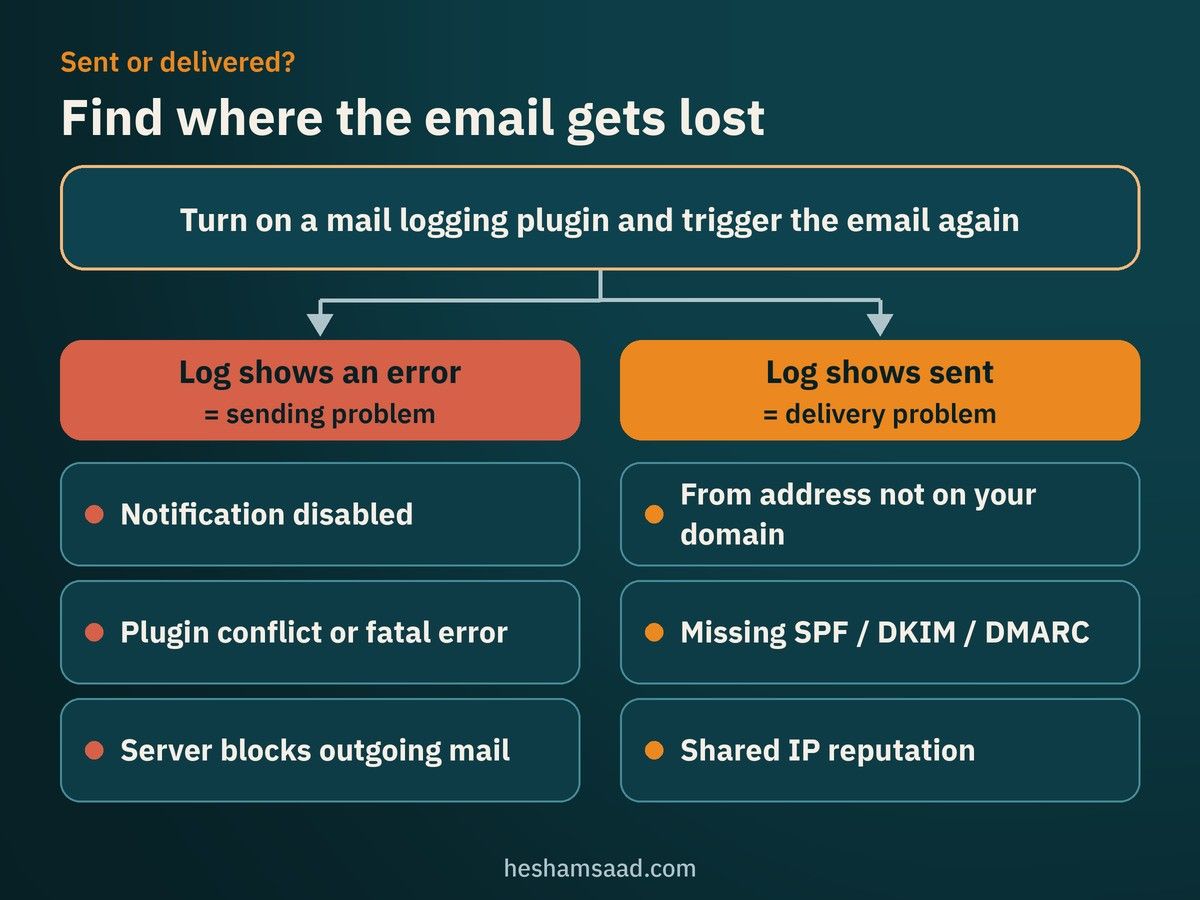
- Sending problems. The email is never created or never leaves your site. Causes include a disabled notification, a plugin conflict, a fatal error, or a server that does not allow outgoing mail.
- Delivery problems. The site sends the email, but the receiving server blocks it or files it as spam. Causes are usually about trust: the sender address, missing domain authentication, or a poor server reputation.
The fix for each group is different, so the first job is to find out which one you have.
Common reasons for WordPress not sending emails
These are the causes we see most often when we take over a site, and each one is backed by the official documentation of WordPress, WooCommerce or the mailbox providers:
- The host’s mail function is not set up for reliable delivery. The WP Mail SMTP plugin page notes that WordPress uses the PHP mail function by default, and many hosting servers are not configured to send that mail properly.
- The “From” address is a free mailbox. If your form or store sends “from” an @gmail.com or @yahoo.com address while the email leaves your own server, receivers see a mismatch. WooCommerce and Contact Form 7 both recommend a From address on your website’s domain.
- The default wordpress@ address does not exist. Contact Form 7’s documentation recommends creating a real wordpress@yourdomain address, because some hosts block outgoing mail from an address that does not exist.
- No SPF, DKIM or DMARC records. Gmail, Yahoo and Outlook check these records to decide whether to trust your domain. More on them below.
- A shared IP with a bad reputation. Google’s sender guidelines explain that on a shared IP, the behaviour of every sender on that address affects the reputation of all of them.
- A conflict or error before the email is triggered. WooCommerce notes that if an error stops the order status from changing, the order email is never sent.
- The notification is simply turned off, or the form sends to an old address that nobody reads.
Find where the email gets lost: a step-by-step check
Before changing anything, collect evidence. If you are not comfortable working on the live site, use a staging copy for any plugin tests.
- List the missing emails. Is it all email, only form notifications, only WooCommerce orders, or only emails to one provider such as Outlook? A pattern points to the cause.
- Check spam and junk folders, including the admin mailbox and a test customer mailbox on Gmail and Outlook.
- Confirm the notification is enabled and the recipient address is correct in the form plugin or in WooCommerce settings.
- Install a mail logging plugin such as WP Mail Logging or Check & Log Email, then trigger the email again. If the log shows an error, you have a sending problem. If the log shows the email as sent, the problem is delivery.
- For stores, read the WooCommerce email log. WooCommerce’s documentation explains that it logs each transactional email attempt under WooCommerce, Status, Logs, in a source called “transactional-emails”, with outcomes such as Sent, Failed, Disabled or Skipped.
- Look at the full headers of a delivered test email. In Gmail, “Show original” displays whether SPF, DKIM and DMARC passed. Failures here explain spam-folder delivery.
- Check for errors. If emails stopped after an update, our guide to fixing common WordPress errors shows how to rule out plugin and theme conflicts safely.
WordPress SMTP setup: the fix that usually works
For most business sites, the lasting fix is to stop relying on the server’s basic mail function and send through a proper email service. This is what people mean by a WordPress SMTP setup. An SMTP plugin reconfigures wp_mail so that every email from WordPress and its plugins goes out through the service you choose: Google Workspace, Microsoft 365, or a transactional email provider such as Amazon SES, Brevo, Mailgun, Postmark or SendGrid.
WooCommerce’s documentation recommends signing up with a dedicated SMTP provider and notes that an average site can usually stay within the free usage of such a service. Check each provider’s current plan before you rely on that, because free limits change.
Here are three widely used plugins from the WordPress.org directory, with figures taken from their official plugin pages in October 2026:
| Plugin | Active installations | What its official page highlights |
|---|---|---|
| WP Mail SMTP by WPForms | 4,000,000+ | Setup wizard and many mailer integrations; built-in mailers send through the provider’s API, which works even if the host blocks SMTP ports. Email logs, alerts and backup connections are in the Pro version. |
| FluentSMTP | 700,000+ | Free with no Pro version; connects to Amazon SES, Gmail, Outlook, SendGrid, Mailgun, Postmark, Brevo and others; includes email logging, failure alerts and routing by From address. |
| Post SMTP | 300,000+ | Email delivery with email logs, alerts, a backup SMTP connection and a mobile app. |
A few practical points when you set this up:
- Use one SMTP plugin only. Two plugins trying to control the same mail function make problems hard to trace.
- Prefer API or OAuth connections over typing a mailbox password into the plugin, where your provider supports it.
- Set the From address once, on your own domain, such as orders@ or info@, and use the plugin’s option to force it if other plugins set their own.
- Send a test email from the plugin to Gmail and Outlook addresses, then check the headers.
- Keep the credentials safe. API keys for email services can be misused to send spam in your name, so give them only to people you trust and remove access when a freelancer leaves. Our website takeover guide covers how to collect these accounts properly.
SPF, DKIM and DMARC in plain language
SMTP gets the email out. Authentication convinces the receiver that it really came from you. Three DNS records do this work:
- SPF lists the servers and services allowed to send email for your domain.
- DKIM adds a digital signature to each email, so the receiver can check that it was sent by an authorised service and not altered.
- DMARC tells receivers what to do when an email fails SPF and DKIM, and can send you reports about email that uses your domain.
Two technical rules catch many businesses that use Google Workspace or Microsoft 365 for staff email and a separate service for website email. First, the SPF standard (RFC 7208) says a domain must not have more than one SPF record, so both services have to be combined into a single record. Second, the same standard limits SPF checks to 10 DNS lookups; going over the limit makes SPF fail. Adding a new email service without merging the records properly can break delivery for your staff email as well, so treat DNS changes with care.
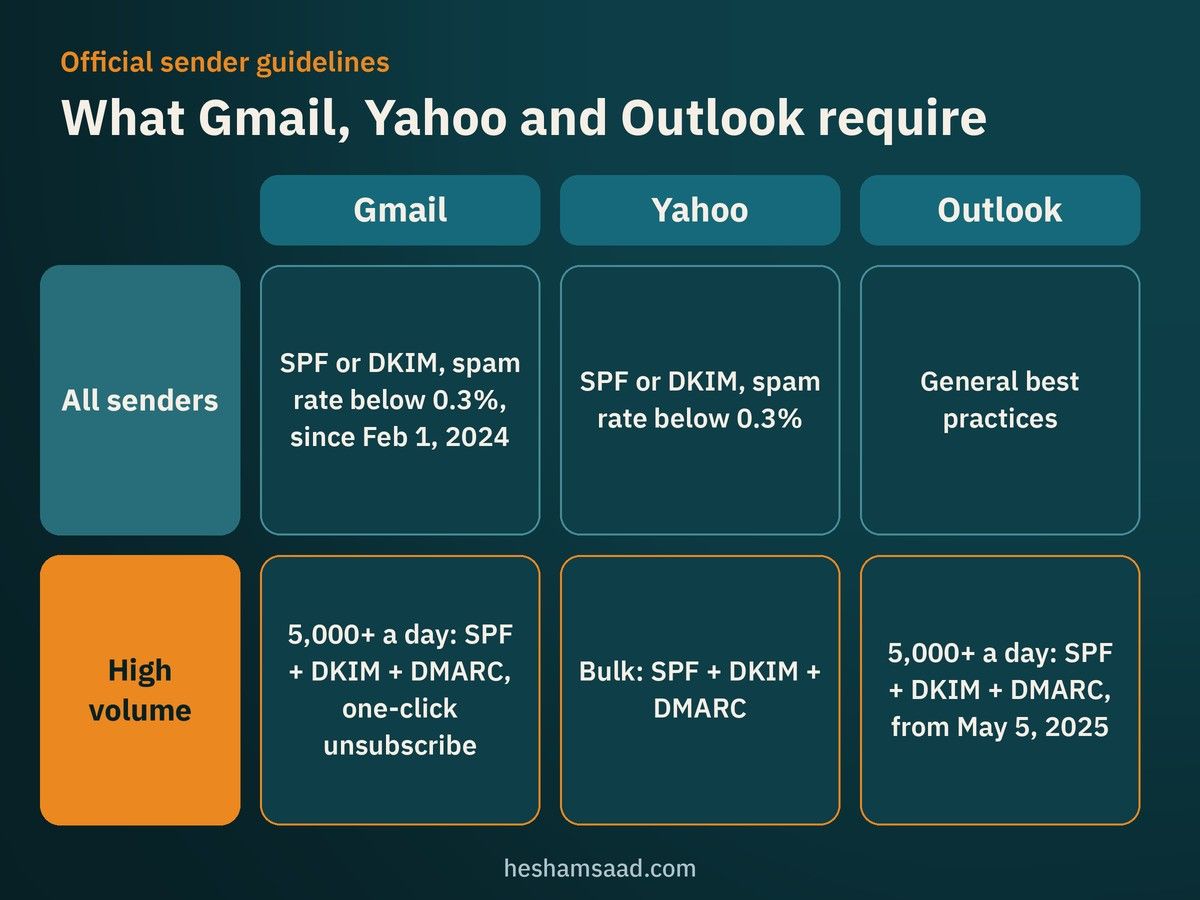
Here is what the three largest mailbox providers say in their official sender guidelines:
| Provider | All senders | High-volume senders |
|---|---|---|
| Gmail | SPF or DKIM since February 1, 2024; spam rate in Postmaster Tools below 0.3%; valid forward and reverse DNS | More than 5,000 messages a day to Gmail accounts: SPF, DKIM and DMARC, plus one-click unsubscribe for marketing email |
| Yahoo | SPF or DKIM at minimum; spam rate below 0.3%; valid forward and reverse DNS | Bulk senders: SPF, DKIM and a DMARC policy |
| Outlook | Follow general best practices | Domains sending more than 5,000 emails a day: SPF, DKIM and DMARC, enforced from May 5, 2025; failing messages may be rejected |
Google also states that sending to personal Gmail accounts requires a DKIM key of at least 1024 bits and recommends 2048 bits where your DNS provider supports it. Even if your site sends far fewer than 5,000 emails a day, setting up all three records is the safest choice, and Google recommends it for every domain.
WooCommerce order emails not sending
Stores have a few extra checks, taken from WooCommerce’s email troubleshooting guide:
- Check the order status. The customer “processing order” email goes out when an order moves to Processing. WooCommerce’s guide notes that orders still in Pending payment do not trigger an email, and if you were paid but the order stayed in Pending payment, the gateway is not updating your site, which is a payment issue rather than an email one. If you use local gateways, our guide to payment gateways in Egypt and Saudi Arabia is a good place to review your setup.
- Open WooCommerce, Settings, Emails, select each template and make sure “Enable this email notification” is ticked.
- Read the transactional-emails log. Sent and failed attempts for order emails are also added as private order notes, so you can see the result inside the order itself.
- Fix the From address in the same Emails screen so it uses your store’s domain.
- Rule out conflicts by testing with only WooCommerce and a default theme on a staging site.
If your store has grown beyond simple fixes, and you need someone to own these settings for the long term, see what to look for when you hire a WooCommerce developer.
Contact form emails: small settings, big difference
Form notifications fail more often than store emails because they are easy to misconfigure. Contact Form 7’s best practice guide gives advice that applies to most form plugins:
- Put an address on your own domain in the From field, never the visitor’s address.
- Put the visitor’s email in the Reply-To header, so replying from your inbox still reaches them.
- Create a real wordpress@yourdomain mailbox if your setup uses it.
- Set up email authentication for the domain.
Also, do not depend on email alone for leads. Most form plugins can store entries in the database or send them to a CRM, so a delivery failure does not mean a lost enquiry.
A quick checklist you can hand to your team
| Check | Where | Done when |
|---|---|---|
| Notifications enabled and recipients correct | Form plugin, WooCommerce, Settings, Emails | Every important email has a named owner who receives it |
| From address on your domain | SMTP plugin, form plugin, WooCommerce | No email is sent “from” a free mailbox |
| One SMTP plugin connected to an email service | Plugins screen | Test email arrives in Gmail and Outlook inboxes |
| Single SPF record, DKIM and DMARC published | Domain DNS | Email headers show SPF, DKIM and DMARC pass |
| Email logging turned on | SMTP or logging plugin, WooCommerce logs | You can see every sent and failed email |
| Form entries saved on the site | Form plugin settings | A lost email never means a lost lead |
| Monthly test | Your maintenance checklist | Someone submits a real test form and order each month |
When to bring in a developer
Many owners can follow the steps above. It is worth asking for help when:
- You do not have access to your domain’s DNS, or you are not sure who does.
- Your staff email runs on the same domain and you are worried about breaking it.
- Emails fail only for some providers, or go to spam even after SMTP is set up.
- The site has many plugins sending email and nobody knows which one does what.
- You suspect your domain is being used to send spam. In that case, check our guide to fixing a hacked WordPress site as well.
A good fix should leave you with more than “it works now”. Ask for a short handover that lists the email service used, who owns the account, the DNS records added, the From addresses for each email type, where logs live, and a monthly test routine. If your hosting company offers a managed plan, ask whether email sending is included, as discussed in our guide to managed WordPress hosting. A WordPress security audit is also a good moment to review who can access the email service keys.
Frequently asked questions
Can I send WordPress emails through my Gmail account?
Plugins such as WP Mail SMTP and FluentSMTP support Gmail and Google Workspace connections. For a business, a Google Workspace mailbox on your own domain is a better choice than a personal Gmail address, because the From address then matches your website’s domain.
I set up SMTP, but emails still go to spam. Why?
Sending through SMTP does not replace authentication. Check the headers of a test email for SPF, DKIM and DMARC results, make sure the From domain matches the domain that passes SPF or DKIM, and review the content of the email itself, for example a subject made only of a link or all capital letters.
Will changing DNS records affect my company email?
It can if the SPF record is replaced instead of merged. Before any change, copy the current records, add the new service to the existing SPF record, and test staff email and website email afterwards.
Do I need a paid email service?
Not always. WooCommerce notes that an average site can usually stay within the free usage of a dedicated SMTP provider. Busy stores, or sites that send newsletters from the same domain, should compare plans and keep marketing email separate from order email.
Get your site’s emails reaching the inbox
When WordPress is not sending emails, the cause is usually a mix of server settings, sender addresses and DNS records, and each fix is small once you know where the message gets lost. If you prefer a team to trace the problem, set up a reliable email service and document everything for you, our WordPress development team can help. You can also book a free consultation to review your site’s email setup before you change anything.
References
- wp_mail function reference, WordPress Developer Resources
- Email FAQ and troubleshooting, WooCommerce documentation
- Best practice to set up mail, Contact Form 7
- Email sender guidelines, Google Workspace Admin Help
- Sender best practices, Yahoo Sender Hub
- Outlook requirements for high-volume senders, Microsoft Tech Community
- RFC 7208: Sender Policy Framework (SPF)
- WP Mail SMTP, WordPress.org plugin directory
- FluentSMTP, WordPress.org plugin directory
- Post SMTP, WordPress.org plugin directory
- WP Mail Logging, WordPress.org plugin directory
- Check & Log Email, WordPress.org plugin directory