هذا المقال متوفر باللغة العربية — اقرأ بالعربية
Choosing between WooCommerce courier plugins Egypt merchants can rely on is usually the point where a store stops copying addresses into a courier portal by hand and starts shipping from the order screen. The right plugin creates the shipment, prints the airway bill and saves the tracking number on the order. The wrong one slows checkout, breaks after an update or expects a courier account you do not have yet.
This guide compares the courier plugins we could verify for Egypt and Saudi Arabia, shows how to set cash on delivery rules and fees in WooCommerce, explains when to move from a flat fee to weight-based rates, and ends with a checkout test list. If you would rather hand the whole job over, our WooCommerce development service covers couriers, payments and checkout as one project.
We will not repeat the basic zone setup here. If your zones are not ready yet, start with our guide to setting up WooCommerce shipping for Egypt and the Gulf, then come back to this one.
What a courier plugin actually does in WooCommerce
WooCommerce on its own knows nothing about Bosta, Aramex or SMSA. It calculates a shipping cost from the rules you set, takes the order and stops there. Everything after that, booking the pickup, printing the label and telling the customer where the parcel is, happens in the courier’s system.
A courier plugin connects the two. Depending on the courier, it can do some or all of the following:
- Send an order to the courier as a shipment, one by one or in bulk.
- Create and print the airway bill (AWB) from WordPress.
- Save a tracking number on the WooCommerce order.
- Pull delivery status updates back into the order.
- Show a live rate from the courier at checkout.
Not every plugin does all five. Most of the plugins below focus on shipments, labels and tracking, and leave the price at checkout to your own WooCommerce rules. That difference matters a lot when you plan your rates, so check it first.
WooCommerce courier plugins Egypt and Saudi Arabia stores can use
We only list plugins published on WordPress.org by the courier or platform itself, and we only mention features that appear on the official plugin page. Features and account terms change, so read the current listing before you install anything.
Bosta WooCommerce (Egypt)
Bosta describes “Bosta WooCommerce” as its official extension for WooCommerce. The listing mentions automatic tracking codes for each order, sending orders to Bosta in bulk, printing airway bills in bulk and fetching the latest delivery status from Bosta. After you activate it, you configure it under WooCommerce > Settings > Shipping and add the business API key you get from Bosta support. For most stores looking for a Bosta WooCommerce integration, this is the plugin to start with.
Mylerz (Egypt)
Mylerz publishes its official shipping app on WordPress.org. The listing covers domestic pickup creation as single or bulk orders, printing and reprinting AWBs, automatic tracking numbers on the WooCommerce orders page where tracking is available, and marking orders as fulfilled. You need Mylerz credentials first; new customers are asked to contact Mylerz to open an account.
Aramex eCommCore (Egypt, Saudi Arabia and beyond)
Aramex WooCommerce users should know that two older Aramex plugins on WordPress.org are now closed. The current official one is “Aramex eCommCore”, published by Aramex. It connects WooCommerce to the Aramex Unified Portal and lists automatic order submission, shipment creation from WooCommerce, shipment status and tracking updates, near real-time stock sync, a tracking link in the order details, and support for both COD and prepaid orders. It requires an active Aramex Unified Portal account with WMS access, so it suits merchants who use Aramex for fulfilment, not only last-mile delivery. If you only want Aramex as a courier, ask your Aramex account manager which connection they support for your account.
SMSA Shipping (official) (Saudi Arabia)
For SMSA WooCommerce stores, SMSA Express publishes “SMSA Shipping (official)”. Its listing describes integrating SMSA with WooCommerce to handle shipping logistics, generate AWBs and track orders in real time. The installation notes ask for Ghostscript to be installed and enabled on the server, which is worth checking with your host before you start, because shared hosting does not always offer it.
Aymakan Shipping (Saudi Arabia)
Aymakan Shipping is the one plugin in this list that clearly shows a courier rate at checkout. The listing mentions an Aymakan rate on both the classic checkout and the Cart and Checkout blocks, creating a shipment and AWB from an order, bulk shipments and labels, storing tracking numbers on the order, receiving delivery status updates, support for High-Performance Order Storage (HPOS) and optional Dokan vendor pickup addresses. It also has a test mode that uses a sandbox API. It needs WordPress 6.2 or later, WooCommerce 8.0 or later and PHP 7.4 or later.
Torod (Saudi Arabia, several couriers)
Torod is not a courier. It is a shipping portal that connects your store to several local and international shipping companies. Its official plugin listing mentions printing bills of lading with a choice of shipping companies, tracking shipments from different companies on one screen, a branded tracking page and return page for your store, shipping reports, and a feature for receiving cash on delivery payments weekly without reconciling with each shipping company yourself. It is worth a look if you do not want to sign separate contracts with several couriers in Saudi Arabia.
Courier plugin comparison table
This table only includes what each official listing says. “Not listed” means the listing does not mention it, not that the courier cannot do it.
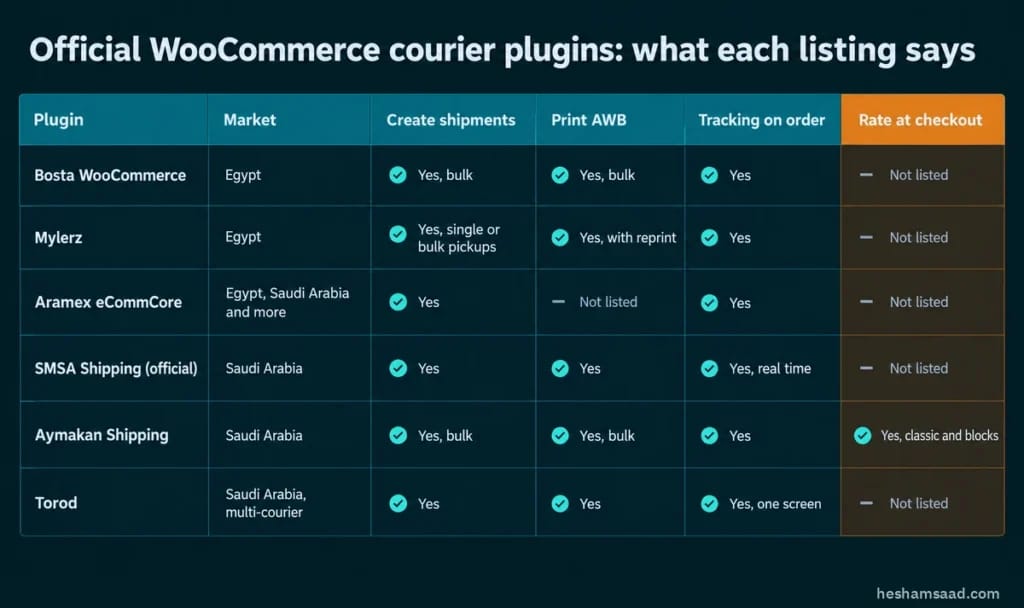
| Plugin | Market | Create shipments | Print AWB | Tracking on order | Rate at checkout | Account needed |
|---|---|---|---|---|---|---|
| Bosta WooCommerce | Egypt | Yes, bulk | Yes, bulk | Yes | Not listed | Bosta API key |
| Mylerz | Egypt | Yes, single or bulk pickups | Yes, with reprint | Yes | Not listed | Mylerz credentials |
| Aramex eCommCore | Egypt, Saudi Arabia and more | Yes | Not listed | Yes | Not listed | Aramex Unified Portal (WMS) |
| SMSA Shipping (official) | Saudi Arabia | Yes | Yes | Yes, real time | Not listed | SMSA account |
| Aymakan Shipping | Saudi Arabia | Yes, bulk | Yes, bulk | Yes | Yes, classic and blocks | Aymakan API key |
| Torod | Saudi Arabia, multi-courier | Yes | Yes | Yes, one screen | Not listed | Torod account |
We did not find an official WordPress.org plugin for Egypt or Saudi Arabia from J&T Express (the one we found is for J&T Express Malaysia), Naqel or Saudi Post (SPL), so they are not in this list. If you work with one of them, ask them directly how they connect to WooCommerce.
How to choose between them
- Start with your contract. The best plugin is the one for the courier you already have a business account with. None of these work without one.
- Check where the price comes from. If the plugin does not show a live rate, your WooCommerce rules still set the shipping fee, and they need to match your courier’s price list.
- Check maintenance. On WordPress.org look at “Last updated”, “Tested up to” and the support forum. A plugin that has not been updated for a year is a risk on the checkout page.
- Check your checkout type. If your store uses the Cart and Checkout blocks, confirm the plugin supports them. Aymakan says so clearly; for the others, test it.
- Check HPOS. New WooCommerce stores use High-Performance Order Storage by default. A courier plugin that writes to orders must work with it.
- Plan for busy weeks. Pickup slots and COD cash flow get tight when order volume jumps before Ramadan or White Friday. If you have a year or more of order history, AI demand forecasting can estimate weekly order volume, so you can agree on extra pickups with your courier early.
WooCommerce cash on delivery in Egypt and Saudi Arabia: rules that protect you
Cash on delivery is still the first choice for many shoppers in both countries, and every COD order is a parcel you pay to send before you know you will be paid. That is why COD rules belong in the same plan as your courier. For card and wallet options, see our comparison of payment gateways for Egypt and Saudi Arabia.

The core COD settings
Go to WooCommerce > Settings > Payments, open Cash on delivery and enable it. According to the WooCommerce documentation, the settings are:
- Title and Description: what the customer sees at checkout. Write them in both languages on a bilingual store.
- Instructions: how to pay, shown after the order.
- Enable for shipping methods: the shipping methods and rates that will offer COD.
- Accept for virtual orders: allows COD for virtual products. Leave it off unless you truly collect cash for them.
WooCommerce sets COD orders to Processing until payment is collected. Confirm the cash actually reached you, usually through your courier’s settlement report, before you mark an order Completed.
Limiting COD to the right orders
“Enable for shipping methods” is your main control. Some practical ways to use it:
- Allow COD only with the shipping methods of a courier that collects cash for you.
- Turn COD off for areas where returns cost you the most, by leaving their shipping method out of the list.
- Allow COD with local pickup, so customers can pay at your counter.
- Keep COD off for virtual orders.
Adding a COD fee: three approaches
Core WooCommerce does not add a fee for cash handling. You have three options:
- Price it into shipping. Add a separate shipping method, for example “Delivery with cash payment”, with a higher cost, and enable COD only for that method. No extra plugin is needed, and the customer sees the cost clearly.
- Use a plugin. Several plugins add a payment-based fee. Check their maintenance and block checkout support as you would for a courier plugin.
- Use a small code snippet. This suits the classic checkout. Set your own amount in place of the placeholder.
You can find more ready-to-use examples in our WordPress code snippets library.
// Add a cash handling fee when COD is chosen (classic checkout)
add_action( 'woocommerce_cart_calculate_fees', function ( $cart ) {
    if ( is_admin() && ! defined( 'DOING_AJAX' ) ) {
        return;
    }
    if ( 'cod' === WC()->session->get( 'chosen_payment_method' ) ) {
        $fee = 0; // set your own amount here
        $cart->add_fee( __( 'Cash on delivery fee', 'your-textdomain' ), $fee );
    }
} );

// Refresh totals when the customer switches payment method
add_action( 'wp_footer', function () {
    if ( ! is_checkout() ) {
        return;
    }
    echo "<script>jQuery(function($){ $('form.checkout').on('change','input[name=payment_method]',function(){ $('body').trigger('update_checkout'); }); });</script>";
} );
Test this on a staging copy first. It does not apply to the Cart and Checkout blocks, which handle fees differently. Also mention the fee in the COD description, so it does not surprise customers at the last step.
Weight-based shipping rates and when flat rate is not enough
Here is a detail many store owners miss: the core Flat rate, Free shipping and Local pickup methods do not calculate rates from product weight or dimensions. You can fill in weight and size on every product and the core methods will ignore them. Those fields start to matter when you add a plugin that reads them, for example a courier plugin that sends shipment weight, or a table rate extension.
Weight and dimensions
Even if your rates are flat today, enter real weights and dimensions on your products now. Courier plugins send this data with the shipment; Aymakan’s listing, for example, says its requests include shipment weight. Wrong weights lead to price corrections from the courier later.
Shipping classes
Shipping classes group products that cost the same to ship, such as “Small parcel” and “Bulky”. Inside a flat rate method you can then set a different cost per class, and choose whether the charge is per class or only for the most expensive class in the cart. For most small stores with a few product sizes, this is enough.
Table rate shipping
When your courier charges by weight bands, flat rate plus classes gets messy. Table Rate Shipping, a paid extension sold on WooCommerce.com, lets you define rates by weight, item count, cart total or shipping class, with several tables per zone. Copy your courier’s weight bands into the table so the price at checkout matches what you pay.
| Option | Good for | Watch out for |
|---|---|---|
| Flat rate plus shipping classes | Small stores with a few product sizes | Every product must have the right class |
| Table Rate Shipping (paid extension) | Pricing by weight, item count, cart total or class | More setup time; rules must match your courier contract |
| Courier plugin with live rates | Showing the courier’s own price at checkout | Only some plugins list it; test with your checkout type |
Test your checkout before your customers do
Shipping and COD settings often look fine in the admin and break at checkout. Run this list after every change, on a staging copy if you have one:
- Turn on shipping debug mode under WooCommerce > Settings > Shipping. On the classic cart it shows which zone matched and bypasses the rate cache. Turn it off afterwards, because customers can see it.
- Place a test order for each courier and check that the shipment, AWB and tracking number appear on the order.
- Use the courier’s test or sandbox mode where the plugin offers one, so you do not book real pickups.
- Place a COD order and confirm COD appears only with the methods you allowed, and that any COD fee shows before the customer confirms.
- Test a light cart and a heavy cart if you use weight-based rates.
- Check that products are not marked Virtual, because virtual products never trigger shipping.
- Make sure your caching excludes the Cart, Checkout and My Account pages.
- Check the Arabic checkout on a phone: method names, COD text and prices should be readable and not cut off.
Common mistakes with courier plugins and COD
- Installing a courier plugin on the live store with no test order first.
- Running two courier plugins that both add tracking or shipping methods, so orders get confusing data.
- Leaving COD on for every method, including areas your courier will not collect cash for.
- Marking COD orders Completed before the cash settlement arrives.
- Charging a flat fee while the courier bills by weight, then losing money on heavy orders.
- Ignoring server requirements, such as Ghostscript for the SMSA plugin.
Do it yourself or get help?
One courier, one country and a simple product range is usually a half-day job with the steps above. It gets harder when you ship from Egypt and Saudi Arabia, price by weight, add a COD fee and run a bilingual store where every label and email needs Arabic. If you want us to look at your setup or build it for you, book a free consultation and tell us which courier you use and how they charge you.
Frequently asked questions
Do I need a business account before installing a courier plugin?
Yes. Every plugin in this guide needs an account, an API key or credentials from the courier or portal. Open the account first, then install the plugin.
Will a courier plugin set my shipping price at checkout?
Only some do. Of the plugins we checked, Aymakan’s listing clearly mentions showing a rate at checkout. For the others, your WooCommerce shipping rules still set the price.
Can I offer cash on delivery only for some shipping methods?
Yes. Use “Enable for shipping methods” in the COD settings and select only the methods you want. Methods you leave out will not offer COD.
Can I charge an extra fee for cash on delivery?
Core WooCommerce does not add one. You can create a separate shipping method with a higher cost tied to COD, use a fee plugin, or add a small snippet like the one above on the classic checkout.
References
- Bosta WooCommerce on WordPress.org
- Mylerz on WordPress.org
- Aramex eCommCore on WordPress.org
- SMSA Shipping (official) on WordPress.org
- Aymakan Shipping on WordPress.org
- Torod on WordPress.org
- WooCommerce: Cash on Delivery
- WooCommerce: Product shipping classes
- WooCommerce: Flat rate shipping
- WooCommerce: Table Rate Shipping
- WooCommerce: Troubleshooting core shipping