هذا المقال متوفر باللغة العربية — اقرأ بالعربية
A Wix to WordPress migration usually starts with a simple feeling: the site works, but it no longer fits the business. Maybe you want a proper online store with local payment options, an Arabic and English site you fully control, or a developer who can change anything without fighting the builder. The worry that stops most owners is the same one: “Will I lose my Google rankings and my leads if I move?” This guide answers that honestly. It shows what Wix actually lets you export, what has to be rebuilt, how to keep your search traffic with a clean redirect plan, and when it makes sense to hand the job to a WordPress development and migration team instead of doing it over a weekend.
Everything below is based on Wix’s own Help Center, the official WordPress and WooCommerce documentation, and Google Search Central. There are no made-up success stories here, just the steps that protect your content and your rankings.
Why businesses in the region move from Wix to WordPress
Wix is a good builder for getting a site online quickly. The friction usually shows up later, when the business grows and the site has to do more. These are the usual reasons owners in Egypt, Saudi Arabia and the Gulf consider the move:
- Ownership and hosting choice. Wix explains in its Help Center that a Wix site has to be hosted and operated on Wix’s servers. With WordPress you pick the host, you can move hosts later, and you can take full backups of files and database.
- A serious online store. WooCommerce on WordPress gives you a wide choice of payment, shipping and invoicing plugins, including options built for local gateways. Our guide to accepting payments in Egypt and Saudi Arabia with WooCommerce shows what that looks like in practice. Still deciding? Read WooCommerce or Shopify for your store before you plan the move.
- Bilingual control. Arabic and English sites need separate URLs, correct hreflang tags and proper right to left layouts. WordPress with a translation plugin lets you control each of these directly.
- Developer access. When something needs custom code, a WordPress developer can work on the theme, a plugin or the server. On a closed builder you are limited to what the platform exposes.
When staying on Wix is the better call
A migration is a project, not a button. If your site is a small brochure with a few pages, it brings very little search traffic, and you have no plans for a store, bookings or a second language, staying where you are can be the sensible choice. Move when the business needs something the builder cannot give you, not because of a trend.
What Wix lets you take with you, and what you rebuild
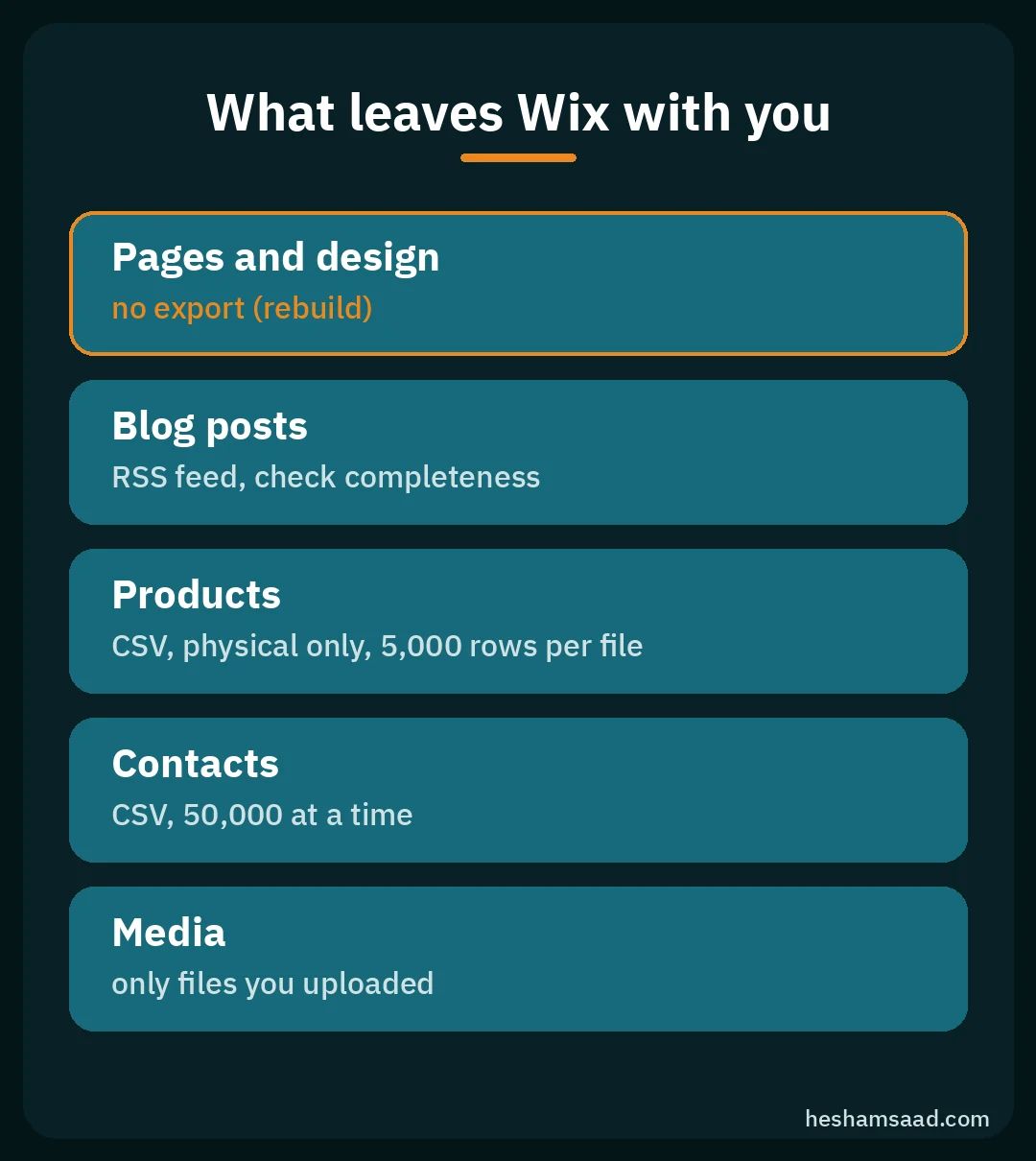
This is the part most owners don’t expect. Wix states that it does not support moving a Wix site to another host. The design, the page layouts and the builder sections stay on Wix. What you can take is your data, and some of it only partly. Here is a realistic picture based on Wix’s Help Center:
| Content | Export from Wix? | Where it goes in WordPress |
|---|---|---|
| Pages and design | No export | Rebuilt with a theme and the block editor |
| Blog posts | Through the RSS feed, check completeness | WordPress RSS importer, then manual review |
| Store products | CSV for physical products, up to 5,000 rows per file | WooCommerce product CSV importer |
| Contacts | CSV, up to 50,000 contacts at a time | Your CRM, email tool or a plugin |
| Media files | Only files you uploaded | WordPress Media Library |
A few details matter here:
- Digital products are not exported. Wix notes that exporting digital products is not currently supported, so those need to be recreated by hand.
- Stock images may not come with you. Wix says only images and videos you uploaded can be downloaded, and free Wix and Shutterstock media cannot be downloaded. Plan replacements for those early.
- The blog feed is a starting point. WordPress’s own data liberation guide for Wix uses the blog RSS feed at
/blog-feed.xmlwith the RSS importer. A feed may not carry every post in full, so compare post counts and read a sample before you trust it.
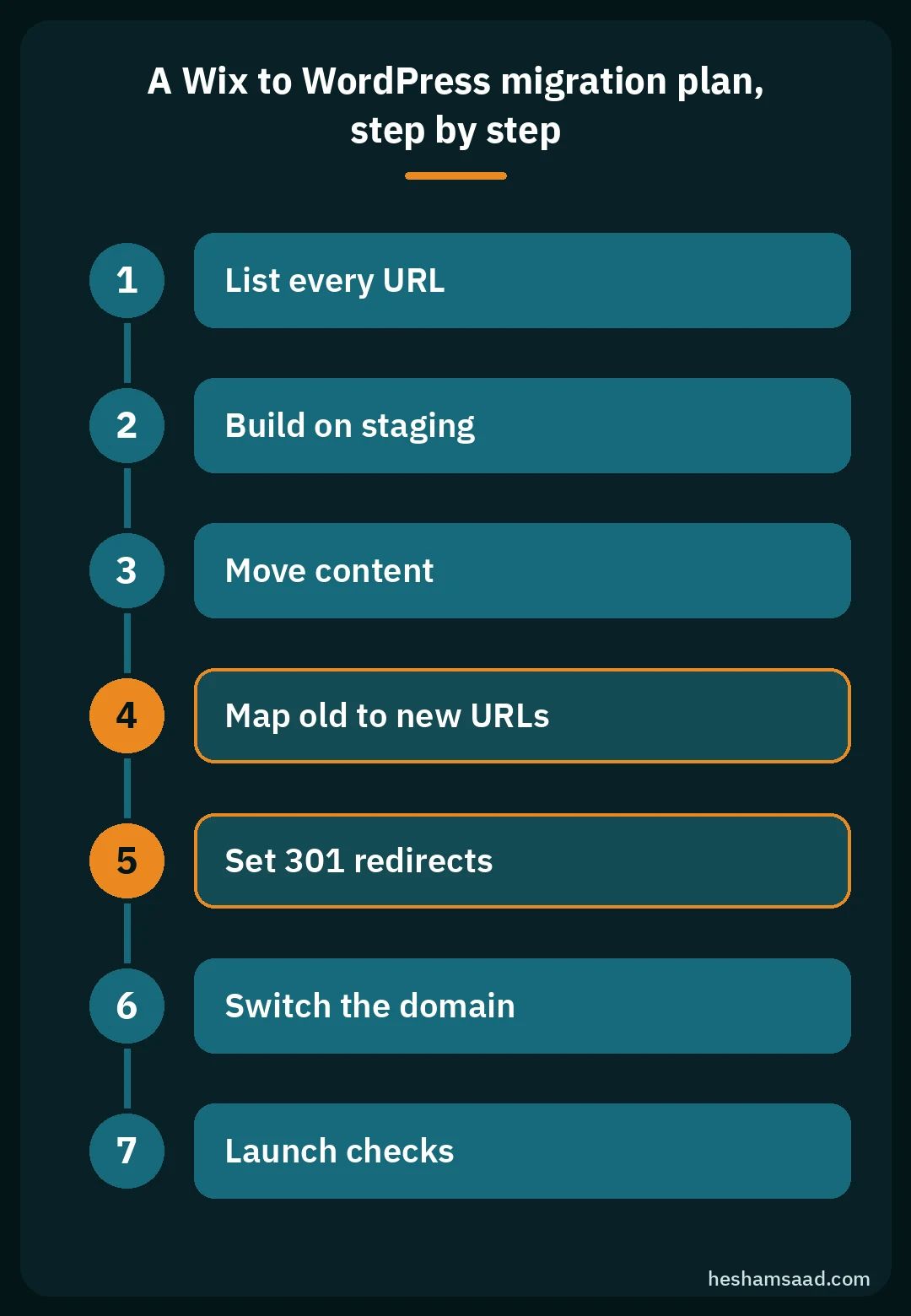
A Wix to WordPress migration plan, step by step
The order of steps is what protects your traffic. Build first, map URLs second, switch the domain last, and keep the old site live until the new one passes its checks.
1. Make a list of every URL you have today
Your current URLs are what Google has indexed and what other sites link to. Before you touch anything, collect them:
- Open your Wix sitemap (usually
/sitemap.xml) and save every page, post and product URL. - In Search Console, export the pages that get clicks and impressions. If you are not set up yet, our walkthrough on setting up Google Search Console for your site covers it.
- Mark the pages that bring leads or sales. These get the most careful treatment.
2. Build the new WordPress site on staging
Build the WordPress version on a temporary address while the Wix site keeps working. This is where you choose the theme, recreate pages, set up forms and connect analytics. Our guide to working safely on a WordPress staging copy explains why nothing should be built on the live domain.
Set your permalink structure now, before content goes in. WordPress lets you choose it under Settings, Permalinks. A simple “post name” structure is easy to read and easy to map.
3. Move the content in
- Blog: save the Wix blog feed as an XML file, then in WordPress go to Tools, Import, install the RSS importer and upload the file. Check images, categories and formatting afterwards, because these often need fixing.
- Products: export physical products from the Wix Product tab to CSV, then use the WooCommerce product CSV importer under Products. Match the columns carefully and test a handful of products first.
- Contacts: export them to CSV from Wix and import them into whatever you use for email or customer follow up. Respect the consent your contacts gave you.
- Media: download your own uploaded files from the Wix Media Manager and upload them to the WordPress Media Library with clear file names.
4. Map every old URL to its new home
Wix and WordPress rarely produce the same URLs, even for the same page. So you build a simple spreadsheet with two columns: old URL and new URL. Every old page that had value should point to the closest matching new page, not to the homepage.
| Old Wix URL (example) | New WordPress URL (example) | Action |
|---|---|---|
| example.com/about-us | example.com/about/ | 301 redirect |
| example.com/services-1 | example.com/services/ | 301 redirect |
| example.com/old-offer | example.com/offers/ | 301 to closest page |
Google’s site move guide recommends exactly this kind of mapping, and it also helps you update internal links later.
5. Set up 301 redirects on WordPress
Once the domain points to WordPress, the old Wix URLs will only keep working if WordPress redirects them. You can add redirects through server rules or with a well known plugin such as Redirection, which is free on WordPress.org. Google recommends server side permanent redirects (301 or 308) where possible and advises against redirect chains, so point each old URL straight to its final destination.
6. Switch the domain
You have two options:
- Keep the domain where it is and point it to your new host by changing its DNS records. This is the fastest route on launch day.
- Transfer the domain away from Wix. Wix sends an authorization code (EPP code) to the registrant email, and you enter it at the new registrar. Wix notes that a domain cannot be transferred within 60 days of registration, a previous transfer, or a change to the registrant contact details, under ICANN rules.
If you plan to transfer, check the 60 day lock before you set a launch date. Many teams point the domain first and transfer it later, once the new site is stable.
7. Launch checks
- Test a sample of old URLs and confirm each returns one 301 and lands on the right page.
- Submit the new XML sitemap in Search Console.
- Test every form, checkout and WhatsApp or call button on mobile.
- Check that no page has a “noindex” setting left over from staging.
Protecting your rankings during the move
Moving platforms while keeping the same domain is still a site move in Google’s eyes, because the URLs change. Google Search Central gives clear guidance that applies directly:
- Use permanent redirects. Google notes that 301 and other permanent redirects don’t cause a loss in PageRank.
- Keep redirects for a long time. Google advises keeping them as long as possible, generally at least one year, so it can recrawl and move signals to the new URLs.
- Update what you control. Change internal links, canonical tags and sitemaps to use the new URLs, and update hreflang annotations if your site is multilingual.
- Change of Address is usually not needed. Google’s guide says that tool is only for moving from one domain or subdomain to another. If you keep your domain, redirects do the work.
Expect some movement in rankings for a few weeks while Google processes the change. That is normal. What isn’t normal is a sharp, lasting drop, which usually points to missing redirects, blocked pages or content that was cut during the rebuild. If you bring Arabic and English versions across at the same time, our guide on SEO for Arabic and English WordPress sites explains how to set up the language URLs correctly.
Common mistakes that cost traffic
- Redirecting everything to the homepage. Visitors and Google both treat that as a missing page. Map to the closest match.
- Shortening content during the rebuild. If a page ranked because it answered a question well, keep that answer when you redesign it.
- Cancelling Wix too early. Keep your Wix plan until the new site has passed its checks and you have every export saved.
- Forgetting the small URLs. Old campaign pages, PDF links and product variants often carry backlinks. Check them in Search Console before launch.
- Launching without a backup plan. Take a full backup of the new WordPress site on launch day. Our WordPress backup and restore guide shows a simple routine.
Do it yourself or hire a WordPress developer?
A five page site with no blog and no store is a reasonable DIY project if you are comfortable with WordPress. The picture changes when the site brings real leads, has a store, has two languages, or ranks for terms that matter to your sales. In those cases a mistake in the redirect map or the store import costs more than the help would have.
What drives the effort, and therefore the quote, is mostly scope:
- How many pages, posts and products need to move.
- Whether the design is recreated as is or redesigned at the same time.
- Store features: variations, shipping zones, payment gateways and invoices.
- Arabic and English versions, and how they are linked.
- Forms, bookings and integrations with CRM or WhatsApp tools.
If you are also thinking about a fresh look, it helps to read about planning a WordPress website redesign, because doing both in one project often saves a second round of work.
Questions to ask before you hire someone for the move
- Will you give me the full URL map and the redirect list as files I keep?
- How will you handle products, variations and stock images that Wix won’t export?
- Do you build on staging and keep the Wix site live until launch?
- What exactly do you check on launch day, and what happens in the first month?
- Who owns the hosting account, the domain and the admin logins at the end?
Frequently asked questions
Can I move my Wix site to WordPress automatically?
Not completely. Wix says its sites must run on Wix’s servers, so there is no full export of design and pages. You can bring blog posts through the RSS feed, physical products and contacts through CSV files, and your own uploaded media, then rebuild the pages in WordPress.
Will I lose my Google rankings after moving from Wix?
Not if the move is planned. Map every old URL to a matching new page, use permanent 301 redirects, keep them for at least a year as Google advises, and submit the new sitemap. Short term movement is normal while Google recrawls.
Do I have to transfer my domain away from Wix?
No. You can keep the domain registered where it is and point its DNS to the new host. If you do transfer it, check ICANN’s 60 day lock first, because it can block the transfer after a recent registration, transfer or contact change.
How long does a Wix to WordPress move take?
It depends on the size of the site, the store and the number of languages. A small brochure site is far quicker than a bilingual store with hundreds of products. Ask for a written plan with stages rather than a single deadline.
Your next step
Start with the URL list and the export check in this guide. Even if you hire help, having those two files ready makes the project faster and keeps you in control. If you’d like a second pair of eyes on your current Wix site, what can be moved and what has to be rebuilt, you can book a free consultation and we’ll walk through it with you.
References
- Wix Help Center: Exporting or embedding your Wix site elsewhere
- Wix Help Center: Exporting your product list
- Wix Help Center: Exporting your contacts
- Wix Help Center: Downloading files from the Media Manager
- Wix Help Center: Transferring your Wix domain away from Wix
- Wix Help Center: ICANN’s 60 day lock policy
- WordPress Data Liberation: Wix to WordPress guide
- WordPress Developer Resources: Importing content
- WordPress Documentation: Customize permalinks
- WooCommerce: Product CSV importer and exporter
- Redirection plugin on WordPress.org
- Google Search Central: Site moves with URL changes
- Google Search Central: Redirects and Google Search