هذا المقال متوفر باللغة العربية — اقرأ بالعربية
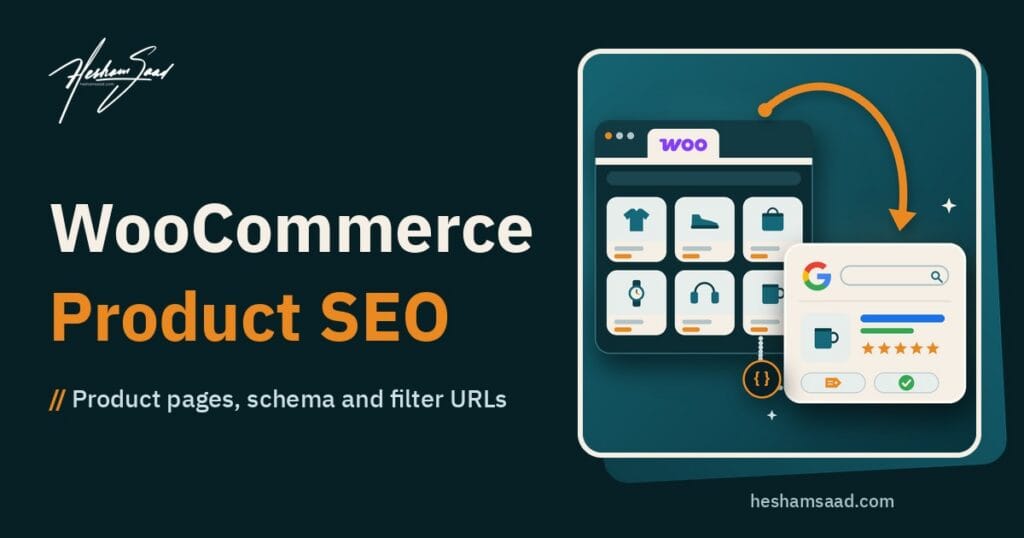
WooCommerce SEO is the work that gets your product and category pages found when people search Google for the things you sell. A blog post can rank on good writing alone, but a store has extra moving parts: hundreds of product pages, filters that create endless URLs, prices and stock that change every week, and often two languages. This guide walks you through the parts that matter most for a WooCommerce store in Egypt, Saudi Arabia or the Gulf, in the order we would fix them, with clear notes on what you can do yourself and where a developer saves you time.
If you are planning a new store, or your current one gets almost no search traffic, it is much cheaper to get these foundations right early. Our team builds SEO-ready WooCommerce stores with the URL structure, structured data and bilingual setup described below already in place.
What WooCommerce SEO actually covers
Most SEO advice is written for blogs and service websites. Ecommerce SEO for WordPress is different in a few important ways:
- Category pages are your main landing pages. Someone searching for “women’s running shoes” wants a list to choose from, not a single product.
- Product pages are many and similar. Thin or copied descriptions across hundreds of products make it hard for Google to see why any one page deserves to rank.
- Filters and sorting create extra URLs. Every colour, size and price filter can produce a new address that shows almost the same list.
- Product data changes. Price, stock and variants need to stay accurate on the page, in structured data and in any product feed.
- Bilingual stores double the work. Arabic and English versions need to be linked correctly so each audience sees the right page.
WooCommerce handles some of this for you out of the box. The rest depends on how the store was set up, which theme and plugins it uses, and how products are written. One thing to know from the start: WooCommerce itself does not add fields for SEO titles and meta descriptions, so most stores add an SEO plugin for that part.
Get the URL structure right before you add products
Your product and category URLs are set in Settings > Permalinks. WooCommerce gives you four product permalink options, according to its own documentation:
| Option | Example URL | Notes |
|---|---|---|
| Default | example.com/product/hoodie-with-logo | The standard choice when your site uses pretty permalinks. With plain permalinks it falls back to ID-based URLs such as ?product=111. |
| Shop base | example.com/shop/hoodie-with-logo | Uses your shop page name as the base. |
| Shop base with category | example.com/shop/hoodies/hoodie-with-logo | Adds the product category to every product URL. |
| Custom base | example.com/superstore/hoodie-with-logo | Any text you choose before the product name. It must not clash with your category base. |
Category pages use the product category base, which is product-category by default, so a category looks like example.com/product-category/accessories. You can change it in the same screen.
Two practical tips:
- Choose once, early. WooCommerce’s documentation warns that changing permalink structures changes the URLs of existing products, and old links and search results will return 404 errors unless you set up redirects. On a store that already ranks, a permalink change is a migration, not a setting.
- Use descriptive slugs. Google’s ecommerce guidance recommends descriptive words in URL paths, such as /product/black-t-shirt-with-a-white-collar instead of /product/3243. Keep product slugs short and readable, and avoid stuffing every keyword into them.
Category pages: your strongest pages for buyer searches
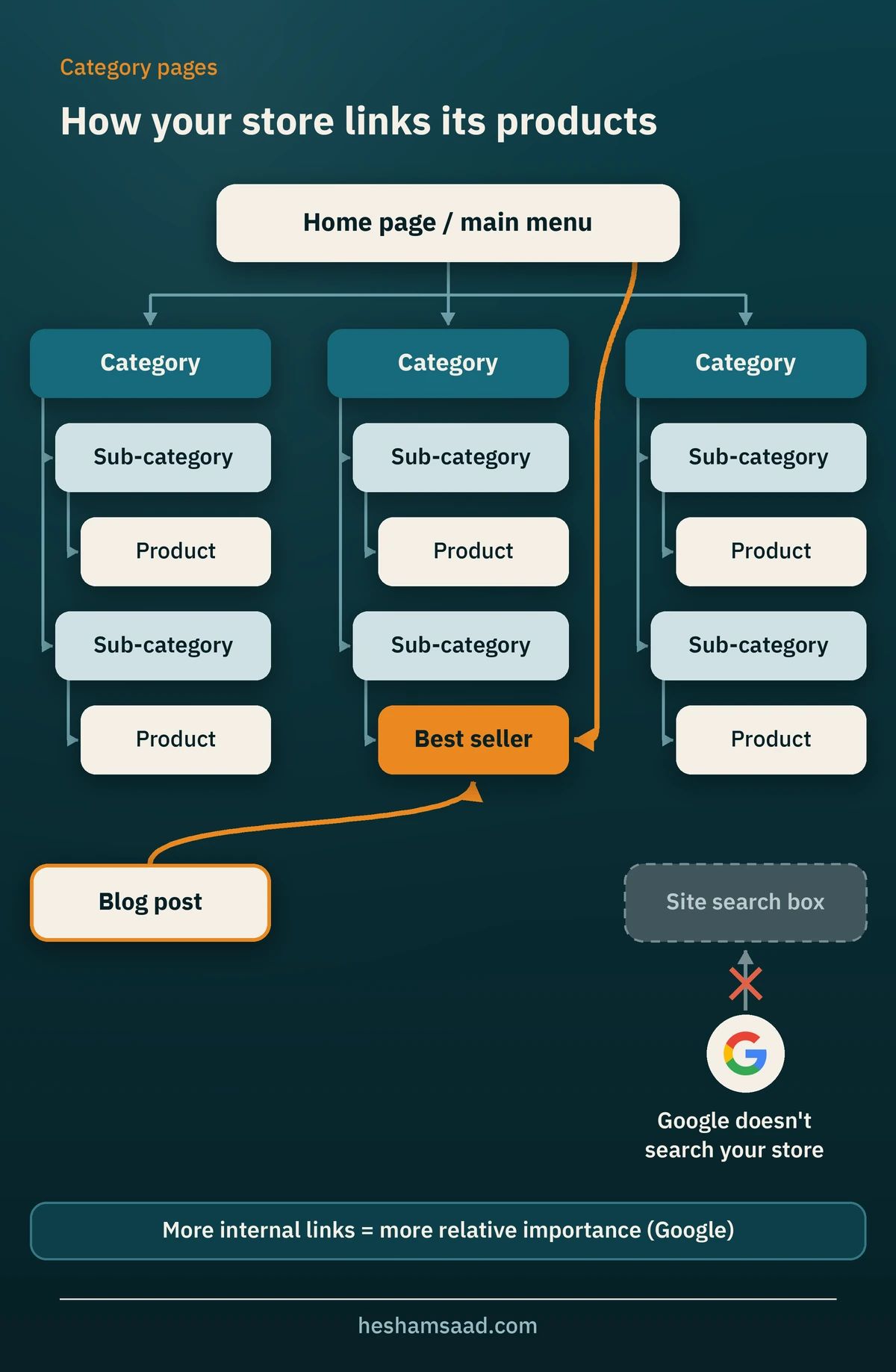
Google says it works out which pages matter most on a store by looking at how pages link to each other, not at the shape of the URLs. Pages that get more internal links are treated as relatively more important. That gives you a clear plan for categories:
- Link from the main menu to your main categories, from categories to sub-categories, and from sub-categories to every product you want indexed.
- Link to your best-selling products and categories from the home page and from relevant blog posts.
- Write a short, useful introduction on each important category page: who the range is for, what sets it apart, and what to check before buying. Keep it above or below the product grid, but make it genuinely helpful rather than a block of keywords.
- Use real HTML links for navigation. Google generally crawls links in
atags with anhref, and its crawler does not click buttons or type into your search box.
Empty categories deserve attention too. Google recommends a noindex tag on a category with no items, or a 404 status if the category is removed from your site’s navigation.
WooCommerce product page SEO checklist
Each product page should give a shopper, and Google, everything needed to decide. For the rest of the site beyond product pages, follow our WordPress SEO audit guide. Work through this list for your top products first, then roll it out across the catalogue:
- A clear product name that includes what the product is, plus brand, model or size where people search for them.
- A unique description written for your customers. Supplier text is often copied word for word by many shops; your own details on fit, use, materials, delivery and warranty make the page worth ranking.
- A short description that works on its own. WooCommerce uses the short description, or the full description if the short one is empty, as the description in its product structured data.
- Good images with useful alt text. Google uses alt text, along with the image itself and the page content, to understand images. Write something like “Black leather ankle boot, side view” rather than “boot” or a list of keywords, and use short descriptive file names. Our guide to WordPress image optimization covers size and speed.
- A barcode where you have one. WooCommerce has a “GTIN, UPC, EAN, or ISBN” field in the product’s Inventory tab, and a valid value is added to the product’s structured data.
- Visible price, stock status and delivery information, so what the page says matches what your structured data and feeds say.
- Customer reviews, if you enable them, since WooCommerce can include them in the page’s structured data.
- Links to related products and the parent category, so Google and shoppers can move around the range.
Product structured data: what WooCommerce already does
Structured data is code that tells Google exactly what a page contains. For products, it can help your results show price, availability, ratings and shipping or return details in Google Search, Google Images and Google Lens.
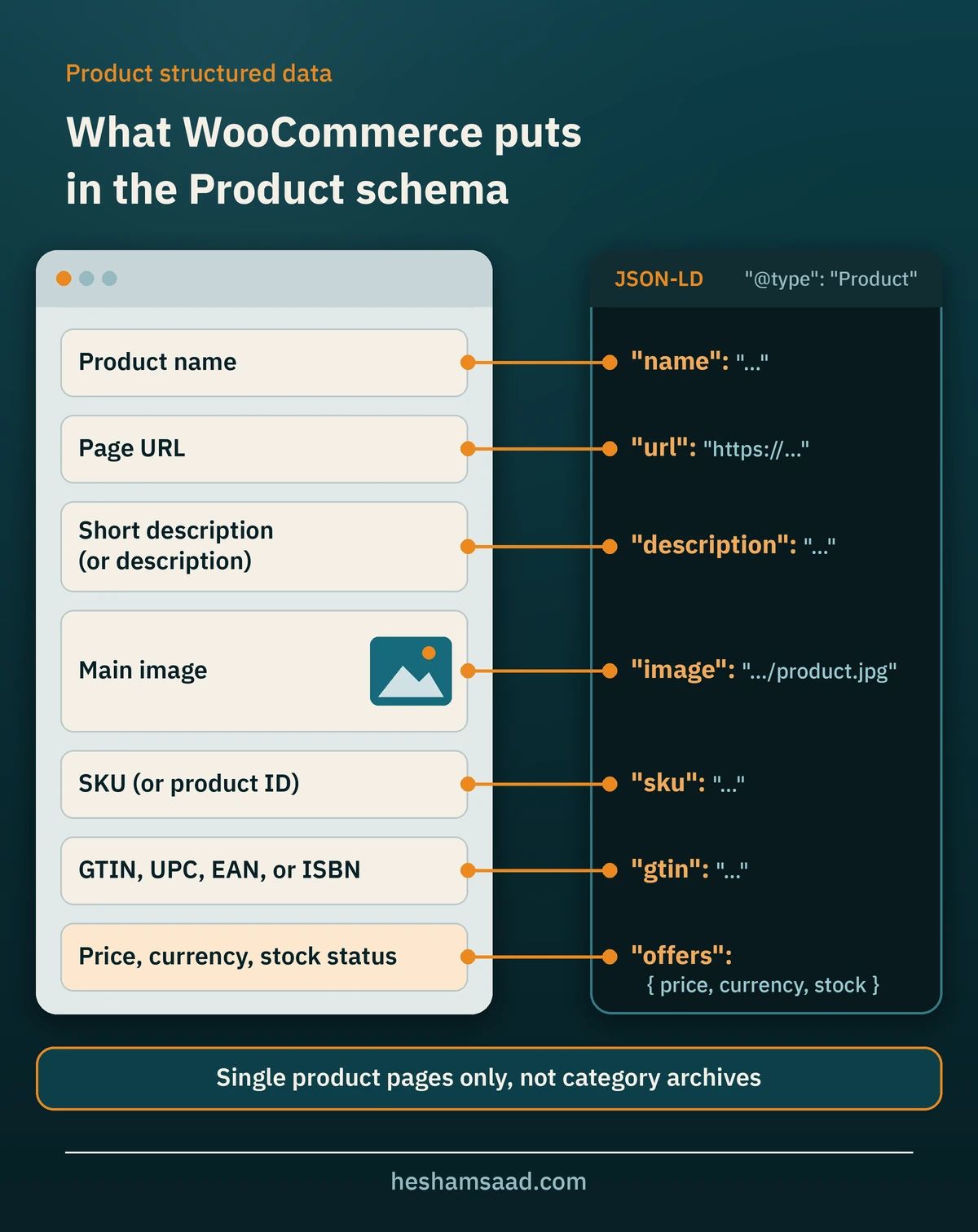
WooCommerce outputs Product structured data automatically in JSON-LD format on single product pages. Looking at its source code, the markup includes the product name, URL, description, main image, SKU (or the product ID if there is no SKU), a valid GTIN if you entered one, and an offer with the price, currency and stock availability. It no longer adds product markup to category or shop archive pages, in line with Google’s guidelines.
Google describes two kinds of product results:
- Merchant listings, for pages where customers can buy the product from you. This is the type that applies to a normal WooCommerce store.
- Product snippets, for pages that review or describe products without selling them directly.
A few things to check on your own store:
- Test a product page with Google’s Rich Results Test and look for Product and merchant listing items without errors.
- Look for duplicates. If your theme, an SEO plugin and WooCommerce all output product markup, you can end up with conflicting data. One clean source is better than three.
- Add business-level details. Google also recommends return policy markup nested under your Organization markup. Many SEO plugins handle Organization data, so check what yours supports before adding custom code.
Filters, sorting and pagination
This is the part of WooCommerce SEO that most store owners never see, and it can quietly waste a lot of Google’s crawling on your site. Sorting adds parameters such as ?orderby=price, and the built-in filters add parameters such as filter_color, min_price and max_price. Each combination is a new URL showing a slightly different version of the same list.
Google’s documentation on faceted navigation says that if you do not need filtered URLs in search, the best option is usually to stop them being crawled with robots.txt, while keeping individual products and the main unfiltered category pages crawlable. A store using WooCommerce’s standard parameters might use rules like these, after checking which parameters its own URLs actually use:
User-agent: *
Disallow: /*?*orderby=
Disallow: /*?*filter_
Disallow: /*?*min_price=
Disallow: /*?*max_price=
Two cautions. First, do not block a URL in robots.txt and also expect a noindex tag on it to work, because Google cannot see a noindex rule on a page it is not allowed to crawl. Pick one approach per URL type. Second, if some filter pages match real searches, such as a “red dresses” view, consider turning them into proper sub-categories with their own text instead of indexing raw filter URLs.
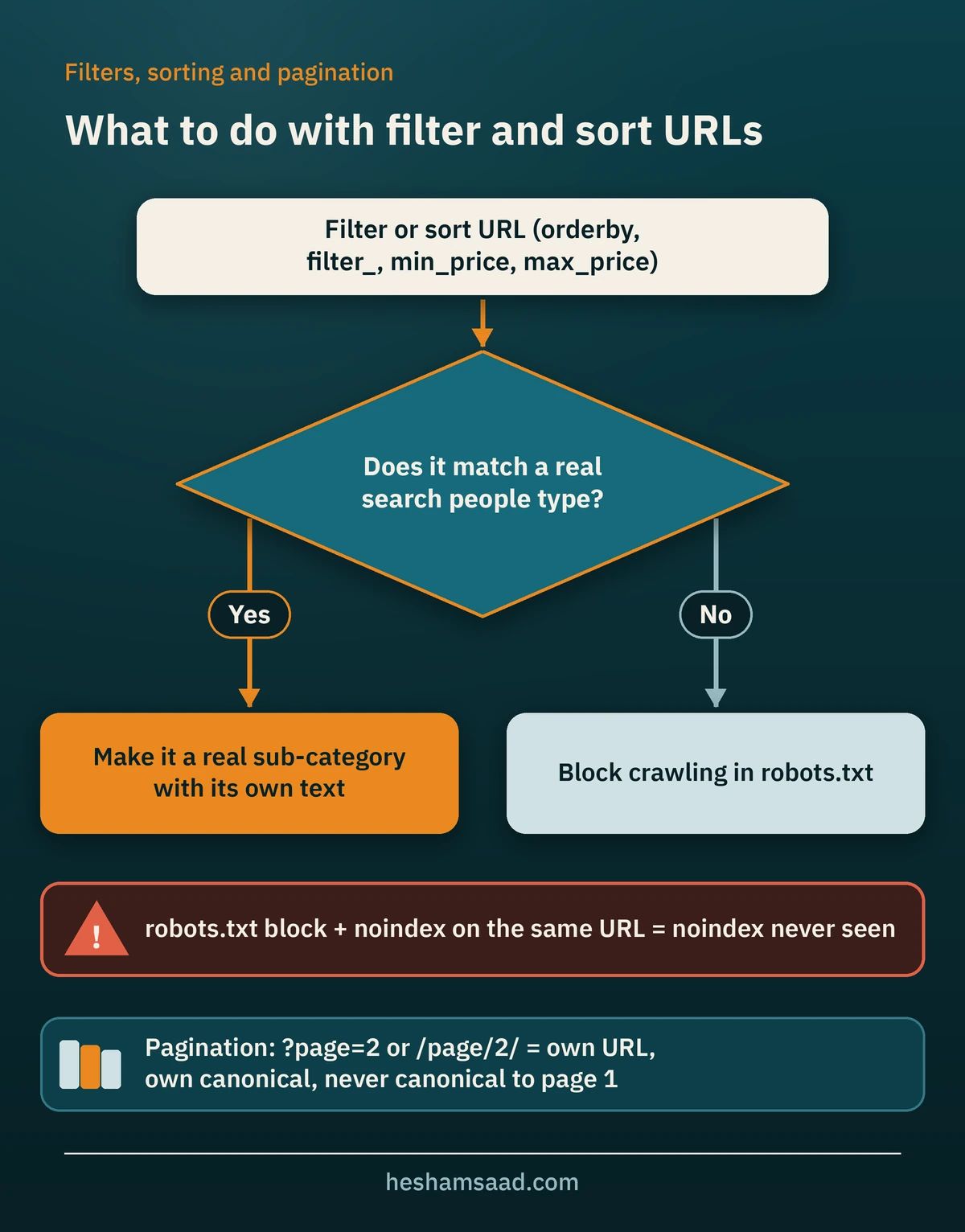
For pagination, Google recommends that every page in a series has its own URL, such as ?page=2 or /page/2/, with its own canonical tag. Do not point the canonical of page 2 or 3 to page 1. If your theme uses a “Load more” button or infinite scroll, make sure there are also normal links to the next pages, or that every product is in your sitemap, because Google’s crawler does not click buttons.
Product variants, stock and discontinued products
For variable products, Google recommends that each variant can be reached at its own URL, using either a path such as /t-shirt/green or a query parameter such as ?color=green. When you use optional query parameters, the URL without the parameter should be the canonical one. WooCommerce variations live under the parent product by default, so in most stores the parent product page is the one you want indexed.
Stock changes are a frequent source of lost rankings:
- Temporarily out of stock: keep the page live. WooCommerce sends the stock status in its structured data, so the page can still rank while customers see it is unavailable. You can offer a back-in-stock alert or link to similar products.
- Hidden from the catalogue: WooCommerce has an “Out of stock visibility” option that hides out-of-stock items from the store catalogue. That is a display choice; think about what you want to happen to the product URL itself before switching it on.
- Discontinued for good: if a close replacement exists, redirect the old URL to it. If not, redirect to the most relevant category, or let it return a 404 when nothing fits.
Arabic and English stores
Many stores in the region sell in Arabic and English. For SEO, the two versions should behave like proper pairs, not two separate shops:
- Link each pair with hreflang. Google’s guidance says each language version must list itself and all other language versions. Multilingual plugins usually handle this, but it is worth checking a few product and category pages.
- Write the Arabic for Arabic searchers. People rarely search in Arabic with the same words a translation tool would produce. Product names, category names and descriptions should use the terms your customers actually type.
- Translate categories and attributes too, not only products, so filter labels and breadcrumbs are in the right language.
We cover the full setup, including language URLs and common mistakes, in our bilingual WordPress SEO guide.
Google Merchant Center and product feeds
Structured data is one way to share product information with Google. The other is a product feed in Google Merchant Center. Google says that providing both maximises your eligibility for shopping experiences and helps it verify your data. The free Google for WooCommerce extension, listed on WordPress.org, syncs your WooCommerce product feed to Merchant Center and keeps prices, stock and other details updated. It also connects to Google Ads if you decide to run paid campaigns later.
Before you start, check in Merchant Center which programmes are available in the countries you sell to, and make sure your shipping and return information is accurate.
How to measure WooCommerce SEO in Search Console
Google Search Console has a Shopping section for stores. Depending on what Google finds on your site, it can include a Merchant listings report, a Product snippets report and a Merchant opportunities report. The structured data reports show a sample of items with errors and warnings, so use the URL Inspection tool for a specific product. In the Performance report you can filter by search appearance to see clicks and impressions from merchant listings and product snippets separately.
If Search Console is not set up yet, start with our Google Search Console guide for WordPress.
Common WooCommerce SEO problems and how to fix them
| Problem | What you usually see | Fix |
|---|---|---|
| Copied supplier descriptions | Product pages indexed but rarely shown | Rewrite top sellers first with your own details |
| Thousands of filter and sort URLs | Crawl budget spent on near-duplicate lists | Block filter parameters in robots.txt or use noindex, not both |
| Permalink change without redirects | 404 errors in Search Console, lost rankings | Map old URLs to new ones with 301 redirects |
| Duplicate product schema | Warnings in the Rich Results Test | Keep one source of Product markup |
| Empty categories still indexed | Pages with no products in search results | noindex, or remove and return 404 |
| Arabic pages not paired with English | Wrong language shown in search | Fix hreflang links between each pair |
| Products only reachable through search or “Load more” | Products missing from Google | Add crawlable category links and a product sitemap |
What to ask before you hire someone for WooCommerce SEO
Whether you hire a developer, an agency or an SEO specialist, these questions show quickly if they understand stores and not just blogs:
- How will you handle filter, sort and pagination URLs on our store?
- Which tool will output our product structured data, and how will you avoid duplicates?
- What happens to our existing URLs if you change permalinks or the theme, and who sets up the redirects?
- How will the Arabic and English versions of products and categories be linked?
- Will you connect Search Console and Merchant Center to our company accounts, not yours?
- Which products and categories will you start with, and how will we measure progress?
For more on choosing the right person, read our guide on how to hire a WooCommerce developer. If you are comparing WooCommerce SEO services with a full SEO retainer for the whole site, our guide to choosing a WordPress SEO agency covers what a wider engagement should include.
Frequently asked questions
Is WooCommerce good for SEO?
Yes, it gives you a solid base: clean product URLs, product structured data on single product pages, and full control over content. Results depend on how the store is set up and how well products and categories are written.
Do I need an SEO plugin for WooCommerce?
In most cases, yes. WooCommerce does not add fields for SEO titles and meta descriptions, and an SEO plugin also helps with sitemaps, social previews and Organization data. Choose one and make sure it does not output a second set of product markup that conflicts with WooCommerce.
Should I remove “product-category” from my category URLs?
It is a style choice more than a ranking factor. If your store is new, you can set the category base you prefer before launch. On a store that already ranks, changing it means every category URL changes and needs a redirect, so weigh the benefit carefully.
How long does WooCommerce SEO take to show results?
There is no fixed timeline. It depends on your competition, how many pages need fixing, and how often Google crawls your site. Technical fixes such as structured data and filter URLs can show in Search Console reports after Google recrawls the pages, while rankings for competitive categories usually take longer.
If you would like your store reviewed or built with WooCommerce SEO in mind from day one, see our WordPress and WooCommerce development service or book a free consultation and send us your store’s URL.
References
- Best practices for ecommerce sites, Google Search Central
- Designing a URL structure for ecommerce sites, Google Search Central
- Help Google understand your ecommerce site structure, Google Search Central
- Pagination and incremental page loading, Google Search Central
- Managing crawling of faceted navigation URLs, Google
- Block search indexing with noindex, Google Search Central
- Introduction to Product structured data, Google Search Central
- Product variant structured data, Google Search Central
- Image SEO best practices, Google Search Central
- Tell Google about localized versions of your page, Google Search Central
- Shopping reports and tools, Search Console Help
- Permalinks, WooCommerce documentation
- Products settings, WooCommerce documentation
- Variable products, WooCommerce documentation
- Structured data for products, WooCommerce wiki
- Google for WooCommerce, WordPress.org plugin directory