


هذا المقال متوفر باللغة العربية — اقرأ بالعربية
If you run a WordPress site, you’ve probably heard “WordPress has AI now” more than once this year. It’s true, but not in the way most people picture it. WordPress isn’t going to wake up one morning and start writing your posts or redesigning your homepage. What actually happened is more useful than that: WordPress has built a solid foundation that lets AI tools and plugins work with your site in a structured, predictable and safer way.
In this post we’ll walk through what changed between WordPress 6.9 and WordPress 7.1, what names like the Abilities API, AI Client, Connectors and MCP Adapter actually mean, and, more importantly, what any of it changes for you as a site owner or developer. We’ll finish with a practical way to start experimenting without putting your live site at risk.
The short version: what changed, and when
AI support didn’t land in a single release. The Core AI team spread it across several versions, each adding one piece of the puzzle. Here’s the timeline, based on the official notes on wordpress.org and make.wordpress.org:
| Version | Release date | Key AI-related addition |
|---|---|---|
| WordPress 6.9 | December 2025 | The Abilities API: one registry for everything your site can do |
| WordPress 7.0 “Armstrong” | May 20, 2026 | The WP AI Client and the Connectors screen for managing AI providers |
| WordPress 7.1 | August 19, 2026 | Major Abilities API improvements, including a unified public flag |
| WordPress 7.2 | Planned for December 10, 2026 | Most AI work continues in the official AI plugin, with no guarantee it reaches core |
One detail worth knowing: 7.0 was originally scheduled for April 9, 2026 and shipped on May 20 instead. That’s normal for a project this size, and it tells you the team would rather slip a date than ship something half-ready.
First, the reassuring part: updating won’t flip your site upside down
A lot of site owners hold off on updates because they worry AI will start touching their content on its own. It won’t. Core provides infrastructure, not features that write or edit for you. For any AI feature to actually run, two things have to happen:
- You connect your site to an AI provider (such as Anthropic, Google or OpenAI) and add your own API key.
- You activate a plugin that uses that infrastructure, like the official AI plugin or another plugin built on top of it.
So you stay in control from start to finish. If you don’t want anything AI-related, your site keeps working exactly as before after the update.
The Abilities API: your site describes what it can do
The idea in plain terms
Picture your site keeping a clear list of skills: it can fetch the latest posts, create a booking, or show the details of a WooCommerce order. Before the Abilities API, every plugin described its features in its own way, and any outside tool that wanted to use them needed custom code written just for that plugin.
Since WordPress 6.9 there’s one shared registry. Any plugin or theme can register an ability with wp_register_ability() and define:
- A clear name and description that both people and tools can understand.
- The shape of the data going in (input schema) and coming out (output schema).
- A permission callback that decides who’s allowed to run it.
- The code that actually does the work.
What 7.1 added
WordPress 7.1 focused on making abilities easier for outside tools to discover and use. The highlights from the developer notes on make.wordpress.org:
- A unified
publicflag in an ability’s metadata. Set it to true and the ability becomes available to external clients like the REST API, MCP adapters and AI agents. The permission callback still decides who can actually run it. wp_get_abilities()can now filter by category, namespace or metadata.- New hooks such as
wp_ability_invokedlet you observe every time an ability runs, which is great for logging and auditing. - Input sent through REST is now coerced to the types declared in the schema, so your callbacks receive real integers and booleans instead of strings.
For developers, this means you can build a plugin once and have it ready for any AI tool, without writing a separate integration for each one. For site owners, it means the plugins you rely on will play together more nicely, and with the new tools that keep showing up.
The WP AI Client: one way to talk to any model
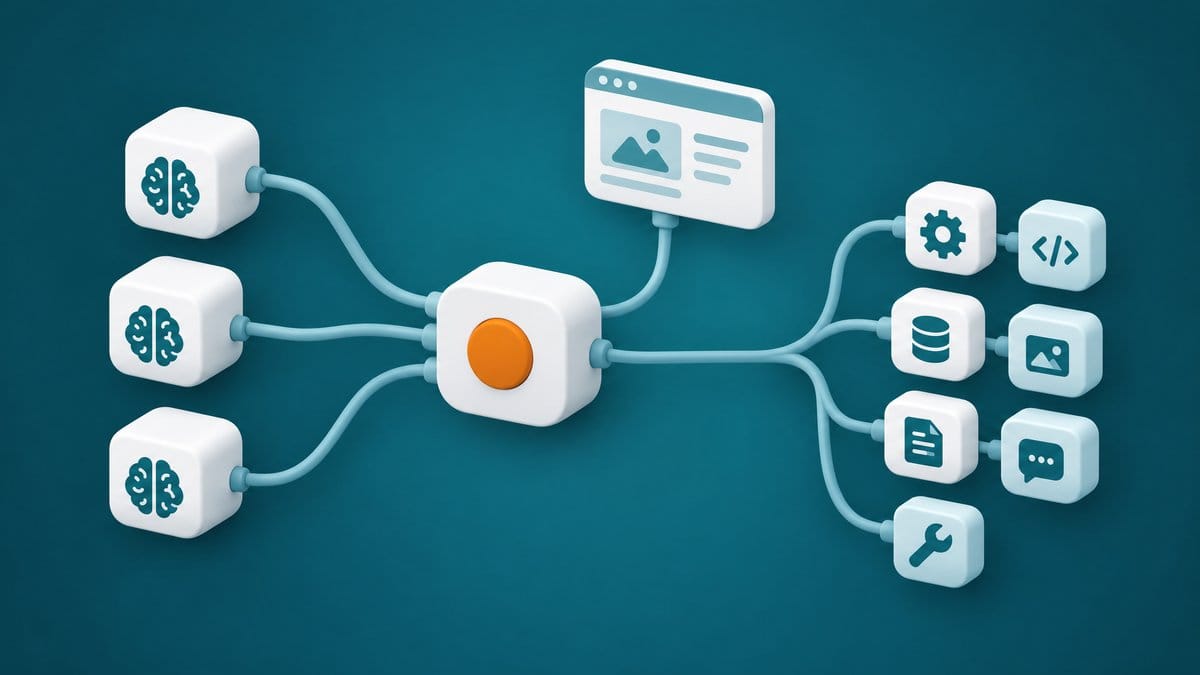
Before 7.0, a plugin that wanted AI had to write its own code for OpenAI, another plugin wrote its own code for Google, and a third did the same for Anthropic. The result was a different API key screen in every plugin and a different way of handling errors in each one.
WordPress 7.0 added the WP AI Client, a central interface that lets plugins talk to generative AI models without being tied to one provider. WordPress handles the request routing. In practice that means:
- You can switch providers without switching plugins.
- Your keys live in one place instead of being scattered around the dashboard.
- Developers write less code, and less code usually means fewer bugs.
The Connectors screen: all your keys in one place
In the dashboard you’ll find a new screen under Settings, then Connectors. It shows registered providers as cards, and it ships with three featured providers out of the box: Anthropic, Google and OpenAI. Add an API key for any of them and every plugin built on the AI Client can use that connection.
Behind the screen sits the Connectors API, which lets any provider plugin register itself and show up there. Right now the full admin interface is available for connections that use an API key, and the team has said future releases will support other authentication methods.
A practical tip if you manage sites for clients: agree up front on who pays the provider’s bill, and set the key up under the client’s account rather than your personal one. It saves a lot of awkward conversations later.
The MCP Adapter: when an AI agent talks to your site
What is MCP?
MCP stands for Model Context Protocol. It’s an open standard that defines how AI assistants communicate with external tools and systems. Tools like Claude Desktop, Cursor and VS Code support it.
What the adapter does
The MCP Adapter is an official package from the AI Building Blocks for WordPress initiative. It takes the abilities registered through the Abilities API and turns them into tools and resources any MCP client can understand. So you could open Claude or Cursor and ask it to list recent orders or prepare a draft, and it would only use the abilities your site has chosen to expose.
A few things to keep in mind before you get excited:
- The adapter’s default server only exposes abilities that are marked as public.
- The adapter is currently distributed through GitHub. The 7.2 roadmap includes publishing it in the WordPress.org plugin directory and making it easy to enable from the AI plugin.
- For local testing you can connect through WP-CLI, and there’s also an HTTP option for sites that are online.
My honest advice: start with read-only abilities, and don’t give any agent permission to delete or edit anything on a live site until you’ve tested it properly on staging.
The official AI plugin: the part you’ll actually see
If you want to see AI working inside your dashboard, the official AI plugin from the WordPress team is the place to start. It brings the AI Client and the Abilities API together in one experience, and it doubles as a reference implementation for developers. Features are opt-in experiments, so you only turn on what you want:
- Title suggestions: a Generate button above the title field gives you options to pick from.
- Excerpt generation: a summary of about 55 words, suited to archive pages and search results.
- Alt text generation: from the Image block or the Media Library, including bulk generation for many images at once.
- Image generation and editing: right from the editor sidebar.
The plugin needs a working provider connection from the Connectors screen, and the editing features run when you click them, not on their own. That’s exactly the right approach: the tool suggests, you decide. And if you want to go a step further and use AI to plan and put together a whole site, our guide to building a WordPress site with AI tools shows what works today and where a developer still matters.
What this means for sites in Egypt and the Arab world
Arabic content still needs a human eye
Model quality in Arabic varies by provider and by type of content. A suggested title can come out as a clunky literal translation, and generated alt text can mix formal Arabic with dialect. Always review before publishing, and test a couple of providers on a sample of your own content before committing to one.
Alt text is a real SEO opportunity
Plenty of Arabic sites have images with no alt text at all. Bulk generation can fix that in minutes, as long as you check that the results are in Arabic and actually describe the image.
Costs are in dollars
Every request to a model costs something at the provider’s end. If your site has thousands of images or products, do the math before running any bulk job, and start with a small batch so you know the real cost.
Online stores
If you run a WooCommerce store, registered abilities could eventually let an AI assistant answer customers about order status or prepare sales reports. That’s still being built, though, and anything involving customer data needs to be handled with real care.
Security comes first
The more your tools can do on your site, the bigger the risk if the setup is wrong. A few simple rules go a long way:
- Always test on a staging copy before touching the live site.
- Create a dedicated user account for these tools with the fewest permissions possible. Never use an administrator account.
- Use Application Passwords or OAuth instead of your main password.
- Make sure any write or delete action needs human approval.
- Review third-party plugins that expose MCP tools and keep them updated, because a permissions flaw here can be serious.
- Keep a recent backup before every experiment.
If you’d rather not carry all of that yourself, our SiteCare service covers updates, backups and ongoing monitoring.
Steps you can take today
- Make sure your site is on WordPress 7.1 and that your theme and plugins are compatible.
- Create a staging copy of your site.
- Install the official AI plugin from the WordPress.org plugin directory.
- Under Settings, then Connectors, add an API key for one provider.
- Turn on the title suggestions experiment and try it on an older post.
- Run alt text generation on ten images and check the quality of the Arabic.
- Note the cost and the time saved, then decide whether to move the setup to your live site.
If you’re a developer who wants to build plugins that register their own abilities, start with the official developer documentation, and take a look at our Web Dev Courses if you want a strong WordPress foundation first.
Frequently asked questions
Do I have to pay to use AI in WordPress?
WordPress and the AI plugin are free. The provider you connect, such as OpenAI, Google or Anthropic, charges you for usage based on their plan.
Will updating to 7.0 or 7.1 slow my site down?
The new infrastructure only does work when a plugin uses it. That said, every major update should be tested on staging first, especially if you have older plugins.
Is the MCP Adapter safe on a live site?
It’s as safe as your setup. The default server only exposes public abilities, but you’re responsible for permissions and for the account it runs under. Start read-only and test on staging.
Will AI write my site’s content for me?
It’s an assistant that suggests titles, excerpts and alt text. The content that builds your customers’ trust still needs your expertise and your voice.
A final word
What’s happening in WordPress this year isn’t a passing trend. It’s a foundation that will be built on for years. The difference between a site that benefits from it and one that suffers from it comes down to planning: know what you need, test somewhere safe, and review everything before it reaches your customers.
If you want help getting your site ready for these features, or you’d like custom abilities built for your store or system, take a look at our WordPress Development service, or book a free consultation and we’ll talk it through.
References
- WordPress 7.0 “Armstrong” on wordpress.org
- WordPress 7.0 Field Guide
- Introducing the Connectors API in WordPress 7.0
- WordPress 7.1 on Make WordPress Core
- Abilities API improvements in WordPress 7.1
- A unified public exposure flag for Abilities in WordPress 7.1
- From Abilities to AI Agents: Introducing the WordPress MCP Adapter
- WordPress/mcp-adapter on GitHub
- The official AI plugin on wordpress.org
- Roadmap to 7.2