---
id: 13057
title: "Add Code Snippets in WordPress Safely: Plugins and Best Practices"
slug: "wordpress-code-snippets"
lang: "en"
url: "https://heshamsaad.com/en/wordpress-code-snippets/"
markdown_url: "https://heshamsaad.com/en/wordpress-code-snippets.md"
translations: {"ar":"https://heshamsaad.com/ar/wordpress-code-snippets/"}
description: "Add code snippets in WordPress safely: why editing theme files is risky, how FluentSnippets, WPCode and Code Snippets help, and a safe testing workflow."
author: "Khadija"
date_published: "2026-10-15T05:26:03Z"
date_modified: "2026-10-18T20:55:22Z"
categories: ["Security & Maintenance"]
tags: ["child theme","code snippets","FluentSnippets","functions.php","WordPress Security"]
featured_image: "https://heshamsaad.com/wp-content/uploads/2026/10/wordpress-code-snippets-og-v2-en.jpg"
word_count: 2108
reading_time_min: 11
content_sha256: "b5767d382d18dba5a29b3f70122e10e06f0528bad183d089239398dafe859810"
---
# Add Code Snippets in WordPress Safely: Plugins and Best Practices
Sooner or later every WordPress site needs a small piece of custom code: a tracking script in the header, a function that changes a WooCommerce label, a CSS fix for one Arabic page. The question is not whether you will add code, but where you put it. This guide explains how to add code snippets in WordPress safely, why pasting code straight into your theme or a plugin's files is a bad habit, and which snippet plugins, such as FluentSnippets, make the job easier and less risky.
Many posts on this blog include short PHP, CSS or JavaScript examples. Whenever you copy one of them into your own site, come back to this guide first. It will save you from the classic white screen, and from losing your changes the next time your theme updates.
## What counts as a code snippet?
A code snippet is a small block of code that changes or adds one behavior on your site without being a full plugin. Typical examples:
- PHP: a function hooked into WordPress, such as changing the excerpt length, adding a custom field to checkout, or disabling a feature you do not use.
- CSS: a style fix, for example adjusting spacing in a right to left layout or hiding an element on mobile.
- JavaScript: analytics, a conversion pixel, or a small interaction on one page.
- HTML: a verification meta tag, a chat widget embed, or a banner.
Most PHP snippets work through hooks. WordPress runs actions and filters at known moments, and your snippet attaches a function to one of them. The [WordPress hooks documentation](https://developer.wordpress.org/plugins/hooks/) explains this model, and it is the reason a snippet can live almost anywhere and still work. The location you choose decides how safe it is.
## Why you should not edit theme or plugin files directly
The fastest route looks tempting: open Appearance, then Theme File Editor, paste the code at the bottom of `functions.php`, and click Update. Here is why experienced developers avoid it.
### 1. Updates wipe your changes
When a theme or plugin updates, WordPress replaces its files with the new version. Anything you added inside those files is gone, usually without warning. You only notice weeks later when a tracking code stops firing or a checkout tweak disappears. WordPress offers [child themes](https://developer.wordpress.org/themes/advanced-topics/child-themes/) for exactly this reason: your customizations live in separate files that the parent theme's updates do not touch.
### 2. One typo can take the whole site down
A missing semicolon or bracket in `functions.php` is a fatal PHP error. The front end and often the admin area stop loading, and the editor you used to make the mistake may be unreachable. Since WordPress 5.2, [fatal error recovery mode](https://make.wordpress.org/core/2019/04/16/fatal-error-recovery-mode-in-5-2/) can catch many of these errors and email the admin a special login link, but it is a safety net, not a workflow. If the email never arrives, you are fixing the file over FTP or your hosting file manager.
### 3. Changes get lost in other ways too
Switch themes and every snippet inside the old theme's `functions.php` stops running. Hand the site to another developer and they have no idea which lines are yours. Edits inside a plugin's files are even worse, because the next plugin update overwrites them and there is no child plugin system to protect you.
### 4. The file editor is a security risk
The official [WordPress hardening guide](https://developer.wordpress.org/advanced-administration/security/hardening/) notes that the dashboard editor lets administrators edit PHP files, and that it is often the first tool an attacker uses after logging in, because it allows code execution. It recommends turning it off with this line in `wp-config.php`:
```
define( 'DISALLOW_FILE_EDIT', true );
```
Many security-focused hosts and care plans set this by default, which is another reason not to rely on the built-in editor for your custom code. If you want a broader checklist, our guide to [locking down the WordPress login](https://heshamsaad.com/en/secure-wordpress-login/) covers the related steps.
## Safe ways to add code snippets in WordPress
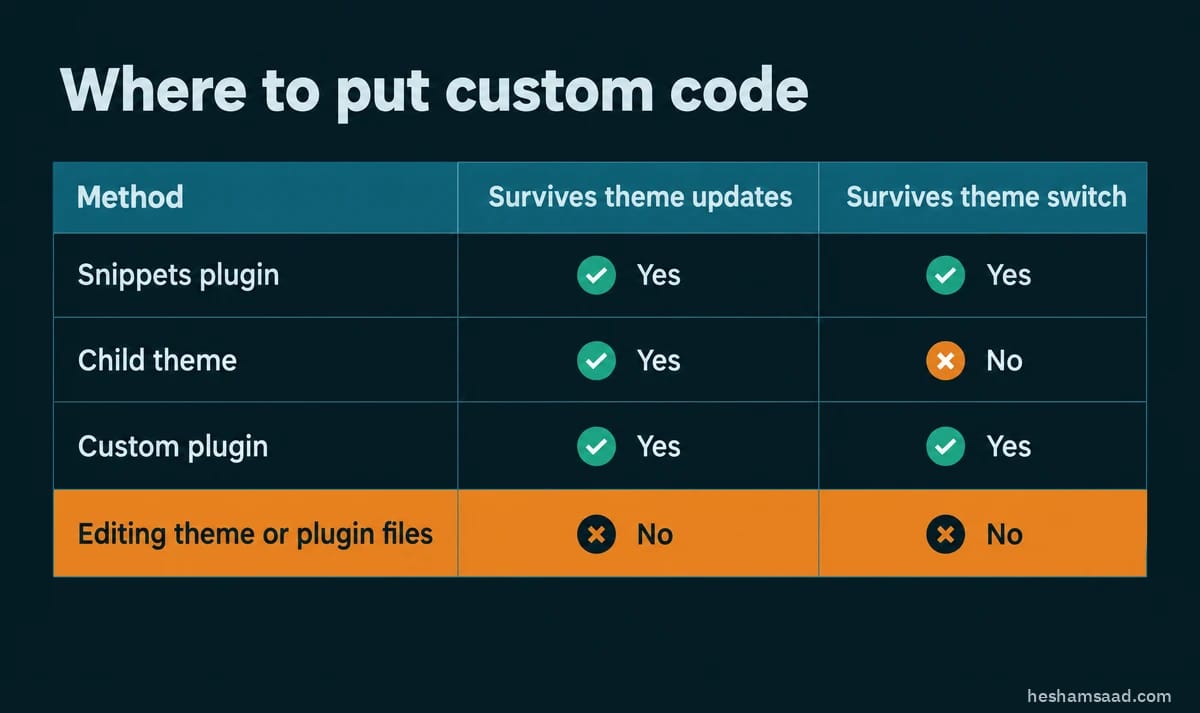You have three reliable options. Which one fits depends on how much code you have and who maintains the site.
| Method | Best for | Survives theme updates? |
|---|---|---|
| Code snippets plugin | Site owners and small tweaks | Yes |
| Child theme `functions.php` | Design-related code tied to one theme | Yes, but not a theme switch |
| Small custom plugin or mu-plugin | Developers and business logic | Yes, and survives theme switches |
| Editing parent theme or plugin files | Never recommended | No |
### Option 1: a code snippets plugin
A snippets plugin gives you a screen inside the dashboard where each piece of code is its own item, with a title, a type (PHP, CSS, JS or HTML), and an on or off switch. You can disable one snippet without touching the others, and nothing you add depends on the theme. For most business owners this is the right choice.
### Option 2: a child theme
If the code is about how your current theme looks or behaves, a child theme is clean and standard. It has its own `style.css` and `functions.php`, and parent theme updates leave it alone. The catch: if you ever switch to a different theme, the code goes with the old child theme.
### Option 3: a small custom plugin
For logic that must keep working no matter which theme is active, such as a WooCommerce rule or a custom post type, a tiny plugin is the professional option. The [Plugin Handbook basics](https://developer.wordpress.org/plugins/plugin-basics/) show that a plugin can be a single PHP file with a header comment. This is how our [custom WordPress development](https://heshamsaad.com/en/wordpress-development/) work usually packages client-specific features.
### A note on CSS only changes
For a few lines of CSS you may not need any of the above. Classic themes have an Additional CSS panel in the Customizer, and block themes let you add custom CSS from the Styles panel in the Site Editor. Both keep your styles outside the theme files, so updates do not erase them. Once your CSS grows beyond a short list of fixes, move it into a snippet or a child theme so it stays organized.
## Code snippet plugins worth knowing
All three plugins below are free in the WordPress.org directory. Features change, so check each plugin page before you install.
### FluentSnippets
[FluentSnippets](https://wordpress.org/plugins/easy-code-manager/) handles PHP, CSS, JavaScript and HTML snippets with conditional logic (run a snippet only for certain post types, URLs or user roles). Its main difference is storage: it saves snippets as flat files instead of database rows. According to its plugin page, if a snippet triggers a fatal error it deactivates that snippet and reports the line, and a Safe Mode URL switches every snippet off if you get locked out of the admin. It also has a Stand-alone Mode that keeps snippets running even if the plugin is removed. The plugin page says it is fully free with no Pro version.
### WPCode
[WPCode](https://wordpress.org/plugins/insert-headers-and-footers/), formerly Insert Headers and Footers, is a common pick for adding scripts like analytics or a pixel to the header and footer, and it also supports PHP, CSS, JS and HTML snippets. It includes a safe mode, and a paid Pro version adds extras such as snippet revisions and a cloud library.
### Code Snippets
[Code Snippets](https://wordpress.org/plugins/code-snippets/) is one of the longest-running options. It treats each snippet like a mini plugin you can activate and deactivate, offers a safe mode to recover from a broken snippet, and has a Pro tier for CSS and JS management and cloud sync.
| Plugin | Recovery from a bad snippet | Paid version |
|---|---|---|
| FluentSnippets | Auto-deactivates the snippet, Safe Mode URL | No |
| WPCode | Safe mode | Yes (Pro) |
| Code Snippets | Safe mode | Yes (Pro) |
Pick one plugin and stick with it. Spreading snippets across two managers, the theme and a custom plugin is how sites end up with duplicate code nobody can trace.
## A safe workflow for every snippet
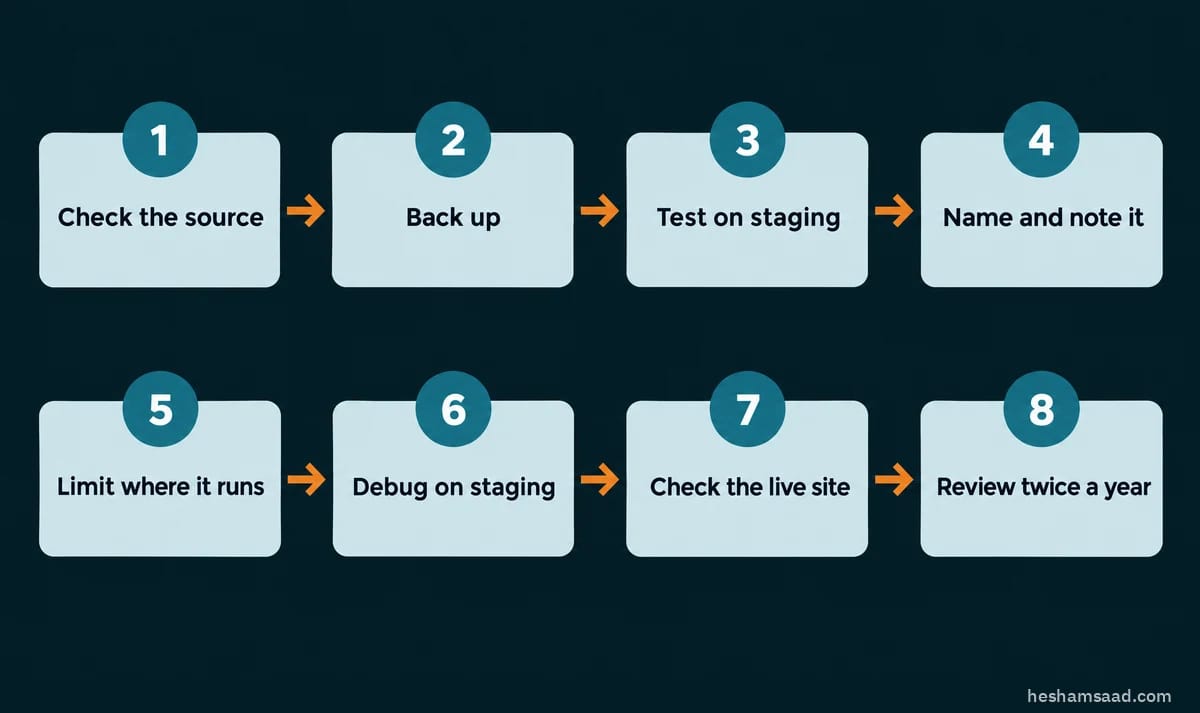
1. Know where the code came from. Prefer official documentation, the plugin author, or a source you trust. Never paste code you do not understand from a random comment or an AI chat without reading it.
2. Take a backup first. A fresh backup turns any mistake into a short restore. Our [WordPress backup and restore guide](https://heshamsaad.com/en/wordpress-backup-restore/) explains a setup that actually works.
3. Test on staging. Try the snippet on a copy of the site before it touches real visitors or orders. See how to set up a [WordPress staging copy](https://heshamsaad.com/en/wordpress-staging-site/).
4. Give it a clear title and note. Write what it does, why, and the date, for example "Hide shipping on digital products, added Oct 2026".
5. Limit where it runs. Use the plugin's conditions so a checkout snippet only runs on checkout, and an admin tweak only runs in the admin.
6. Turn on debugging on staging. The [WordPress debugging guide](https://developer.wordpress.org/advanced-administration/debug/debug-wordpress/) shows how `WP_DEBUG` and the debug log reveal notices before your visitors see a problem.
7. Check the live site right after. Open the pages the snippet affects, in both languages if your site is bilingual, and clear any cache.
8. Review snippets twice a year. Remove code for features you no longer use and code a plugin now handles on its own.
## What to do if a snippet breaks your site

- If you used a snippets plugin: use its safe mode or recovery URL to disable snippets, log in, then fix or delete the faulty one.
- If WordPress emailed you a recovery link: open it, and WordPress will let you into the admin with the broken theme or plugin paused.
- If you edited `functions.php` directly: connect via FTP or your hosting file manager, open the file, and remove the code you added.
- If nothing else works: restore the latest backup. Our guide to [the WordPress errors site owners hit most](https://heshamsaad.com/en/fix-common-wordpress-errors/) covers the white screen and the critical error message in more detail.
## Frequently asked questions
### Is it safe to add code to functions.php?
It works, but only safely in a child theme, with a backup and a way to reach your files if something goes wrong. A snippets plugin is safer for most site owners because a bad snippet can be switched off without FTP.
### Do code snippet plugins slow down WordPress?
A handful of well-written snippets has very little effect. Slow sites usually come from heavy code inside a snippet, not from the manager. FluentSnippets loads snippets from files instead of database queries, which its authors say keeps overhead low.
### Can I move my snippets to another site?
Usually, yes. FluentSnippets supports exporting and importing snippets between sites, and Code Snippets includes import tools. Check your plugin's settings, and keep an exported copy as part of your backups.
### Should I disable the theme file editor?
For most live sites, yes. Adding `DISALLOW_FILE_EDIT` to `wp-config.php` removes the dashboard editor for theme and plugin files, which closes a common route attackers use after stealing an admin login.
## Keep your custom code under control
Custom code is normal, and small snippets can solve real problems in minutes. Keep them out of theme and plugin files, put them in one place, test them first, and document what each one does. If your site has grown a pile of mystery code, or you want a feature built properly as a plugin, our [WordPress care service](https://heshamsaad.com/en/sitecare/) can audit and clean it up, or you can [book a free consultation](https://heshamsaad.com/en/free-consultation/) to talk it through.
## References
- [Hardening WordPress, WordPress Advanced Administration Handbook](https://developer.wordpress.org/advanced-administration/security/hardening/)
- [Child Themes, WordPress Theme Handbook](https://developer.wordpress.org/themes/advanced-topics/child-themes/)
- [Plugin Basics, WordPress Plugin Handbook](https://developer.wordpress.org/plugins/plugin-basics/)
- [Hooks, WordPress Plugin Handbook](https://developer.wordpress.org/plugins/hooks/)
- [Fatal Error Recovery Mode in WordPress 5.2, Make WordPress Core](https://make.wordpress.org/core/2019/04/16/fatal-error-recovery-mode-in-5-2/)
- [Debugging in WordPress, WordPress Advanced Administration Handbook](https://developer.wordpress.org/advanced-administration/debug/debug-wordpress/)
- [FluentSnippets on WordPress.org](https://wordpress.org/plugins/easy-code-manager/)
- [WPCode on WordPress.org](https://wordpress.org/plugins/insert-headers-and-footers/)
- [Code Snippets on WordPress.org](https://wordpress.org/plugins/code-snippets/)